📂 Automate translation and review from a folder, with Redokun and n8n
You have a batch of files to translate: InDesign files (IDML), Word documents, presentations. Today you upload each one to Redokun, assign the translators, wait, and download each translation. This tutorial sets up a workflow that does it for you: you drop the files in a folder on your computer, your translators get them in Redokun, and the translated files come back to a folder when they are confirmed.
🔔 The API is currently enabled on request. If you're on the Premium or Basic plan, write to support@redokun.com and we'll turn it on for your account.
🧪 The Redokun API is in beta. Some things may not work as expected or may change. Tell us what works and what doesn't in the feedback form.
🧩 This workflow is an example. It works as it is, and it is meant as a starting point: you can change it to fit the way your team works. We can help with the Redokun side, but we can't offer support for changes to the workflow.
🔍 What this automation does
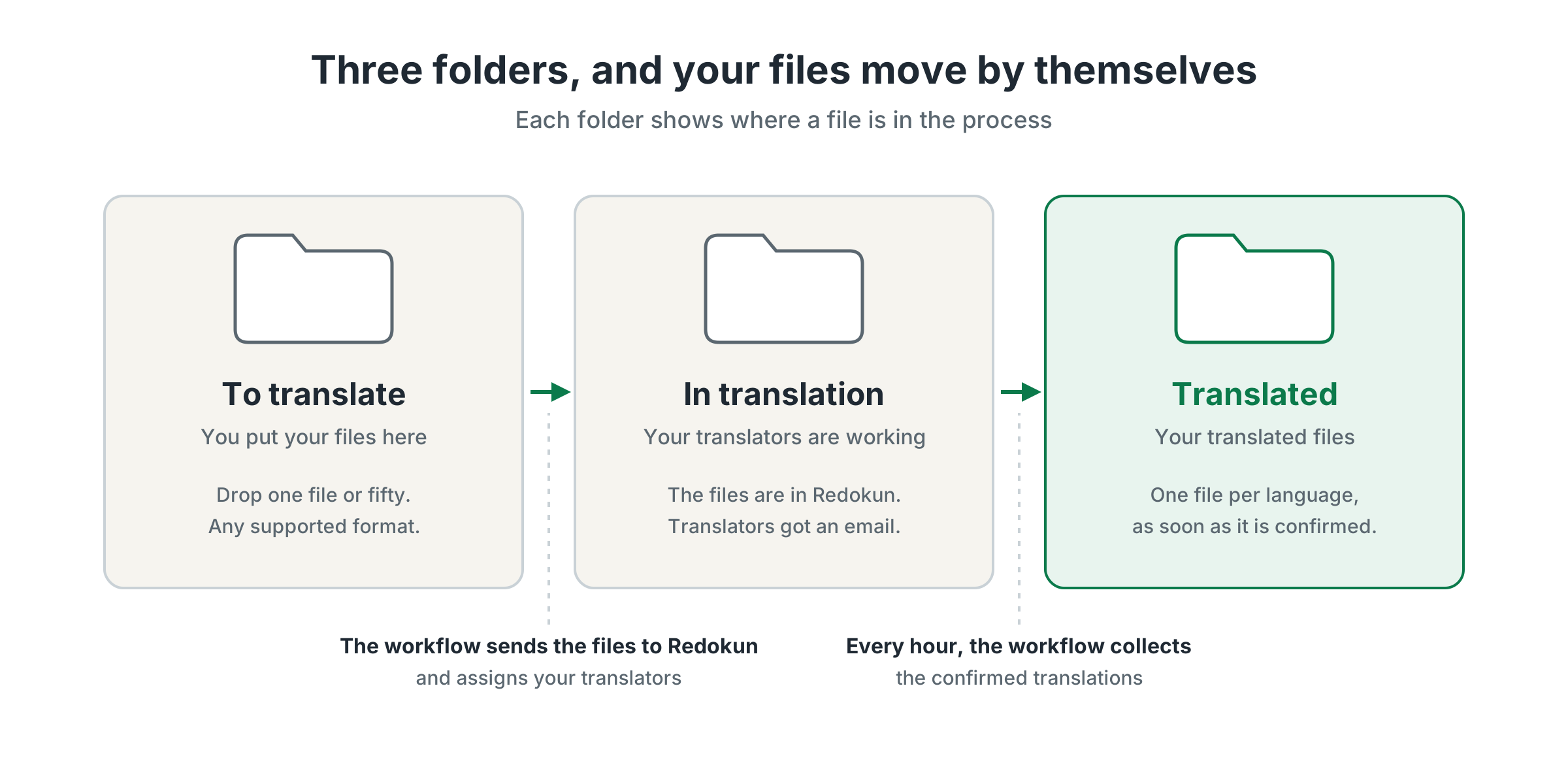
- You put your files in a folder called To translate.
- The workflow uploads each file to Redokun, sets the languages, and assigns your translators. Redokun sends them the usual email.
- If you want, Redokun fills in a first translation with your Translation Memory and AI, so your translators review instead of starting from zero.
- The workflow moves the file to a folder called In translation.
- Every hour, the workflow checks the files in that folder. When a translator confirms a language, the translated file is saved in a folder called Translated.
It works with every file format that Redokun translates, not only InDesign.
💻 A folder on your computer
The three folders are in Google Drive. With Google Drive for desktop, Google Drive appears as a normal folder on your Windows or Mac computer: you drag your files there, and they reach the workflow without opening a browser.
This tutorial uses Google Drive. The same method can be adapted to other tools that keep a folder on your computer in sync with the cloud, such as OneDrive, SharePoint or Dropbox, as long as n8n or a similar tool can read them.
✅ Before you start
- n8n set up for Redokun and Google Drive. Follow 🤖 Automate Redokun with n8n for your n8n account and your Redokun credential. The Google Drive credential is explained in 📁 Translate files from a Google Drive folder with n8n.
- The email addresses of your translators. They don't need a Redokun account yet: Redokun invites them.
- About 20 minutes.
💡 Do you want the translation with no review, ready in a few minutes? Use 📁 Translate files from a Google Drive folder with n8n instead.
📁 Step 1: Create three folders in Google Drive
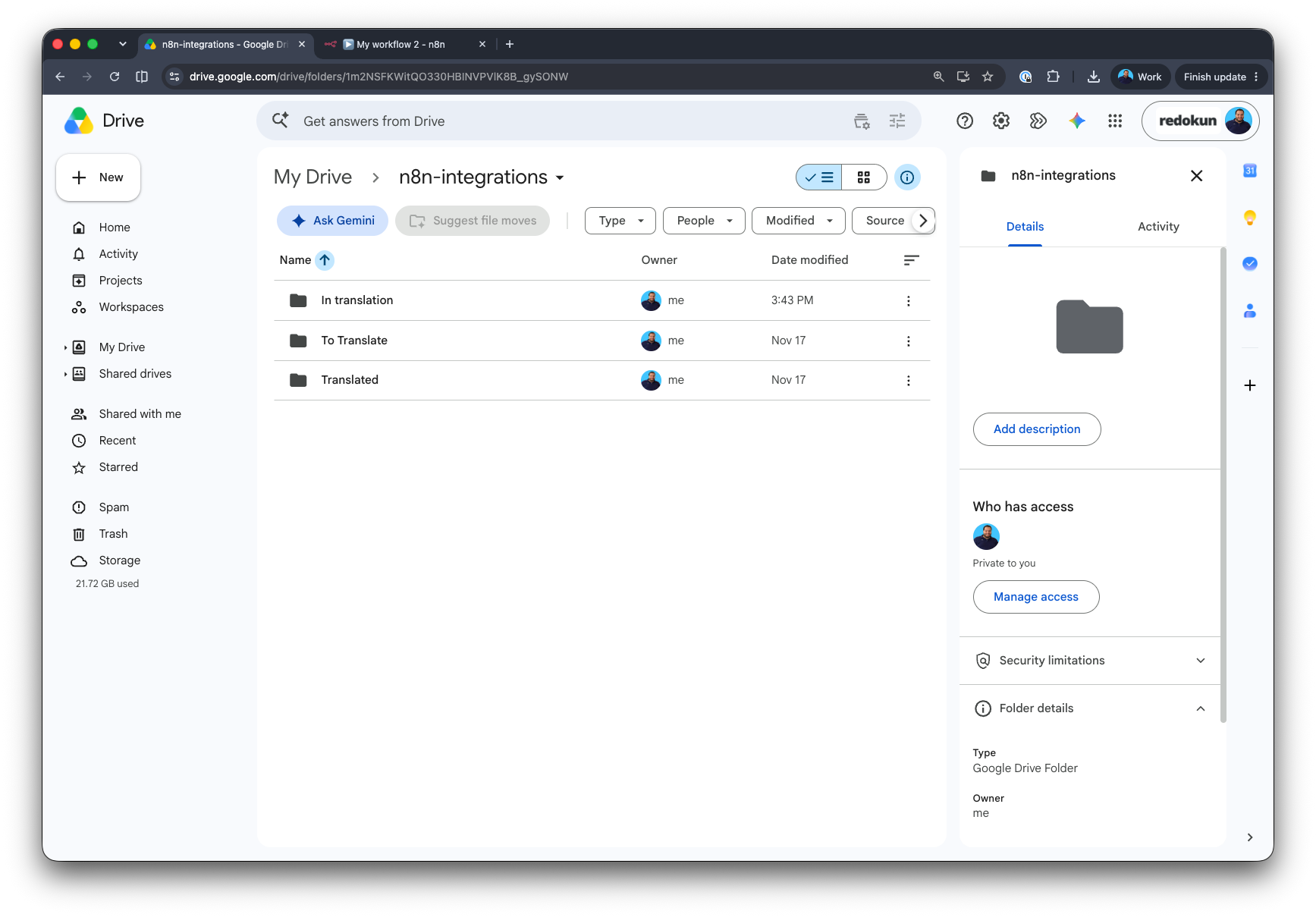
In Google Drive, create three folders, one next to the other:
- To translate: where you put your files.
- In translation: where the files wait while your translators work.
- Translated: where you find the translated files.
📥 Step 2: Import the template
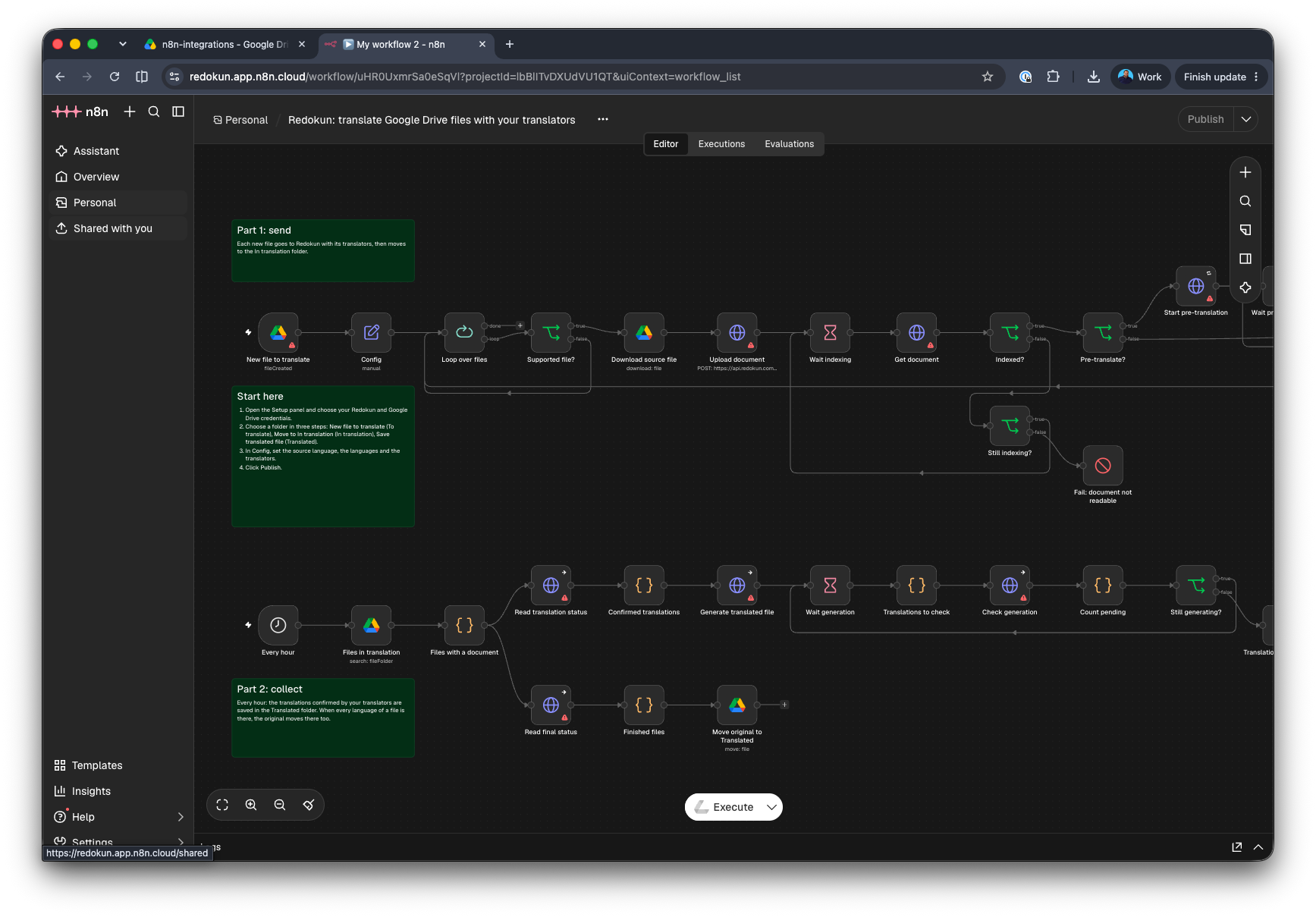
- In n8n, create a new workflow.
- Open the menu with the three dots at the top right and choose Import from URL.
- Paste this link and confirm:
https://redokun-public-static-files.redokun.workers.dev/helpscout/downloadable/n8n-redokun-template-google-drive-translators.json
🔌 Step 3: Connect your credentials
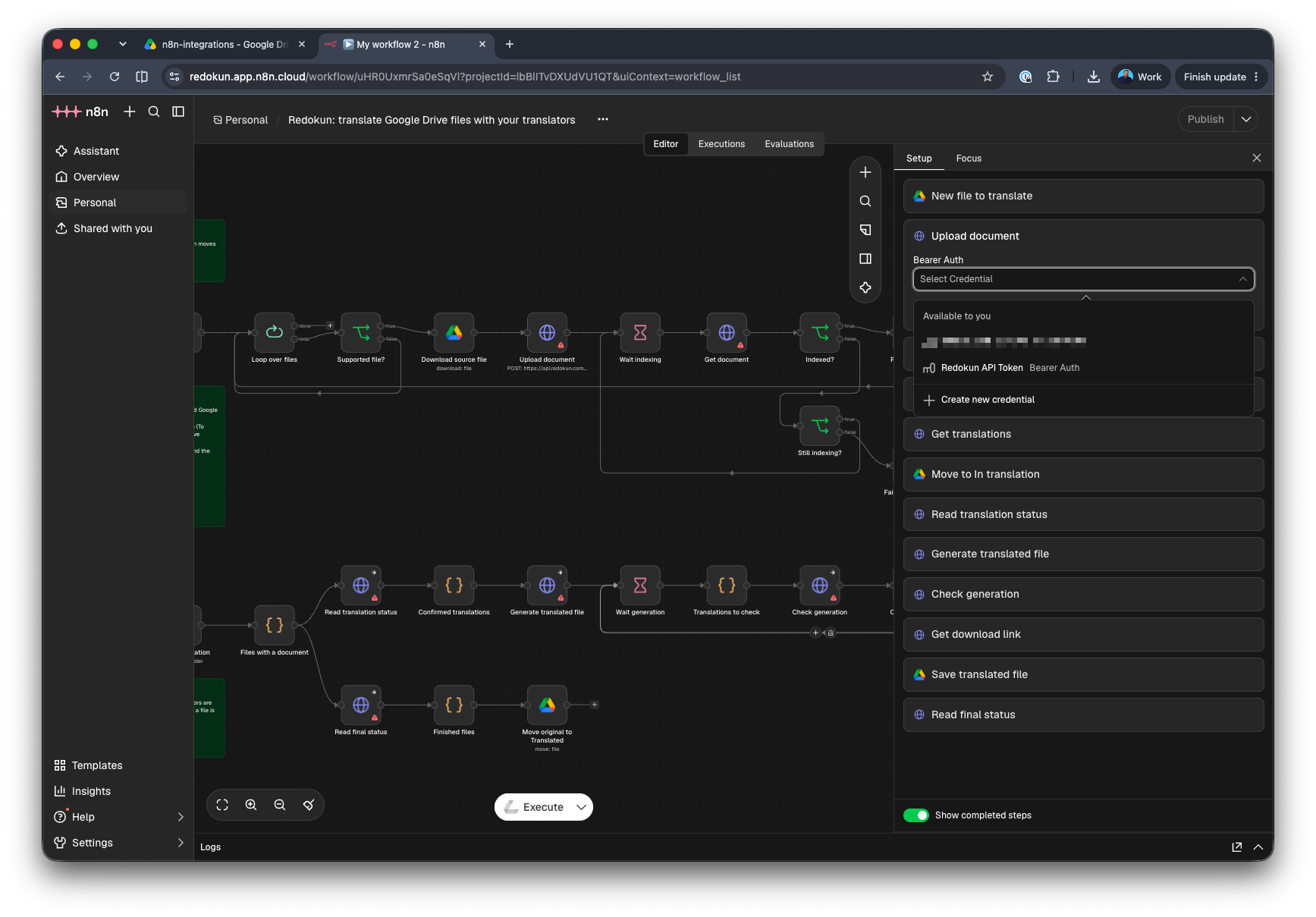
- Open the side panel and go to the Setup tab.
-
For each Redokun step, select your Redokun credential.
-
For each Google Drive step, select your Google Drive credential.
🗂️ Step 4: Choose the three folders
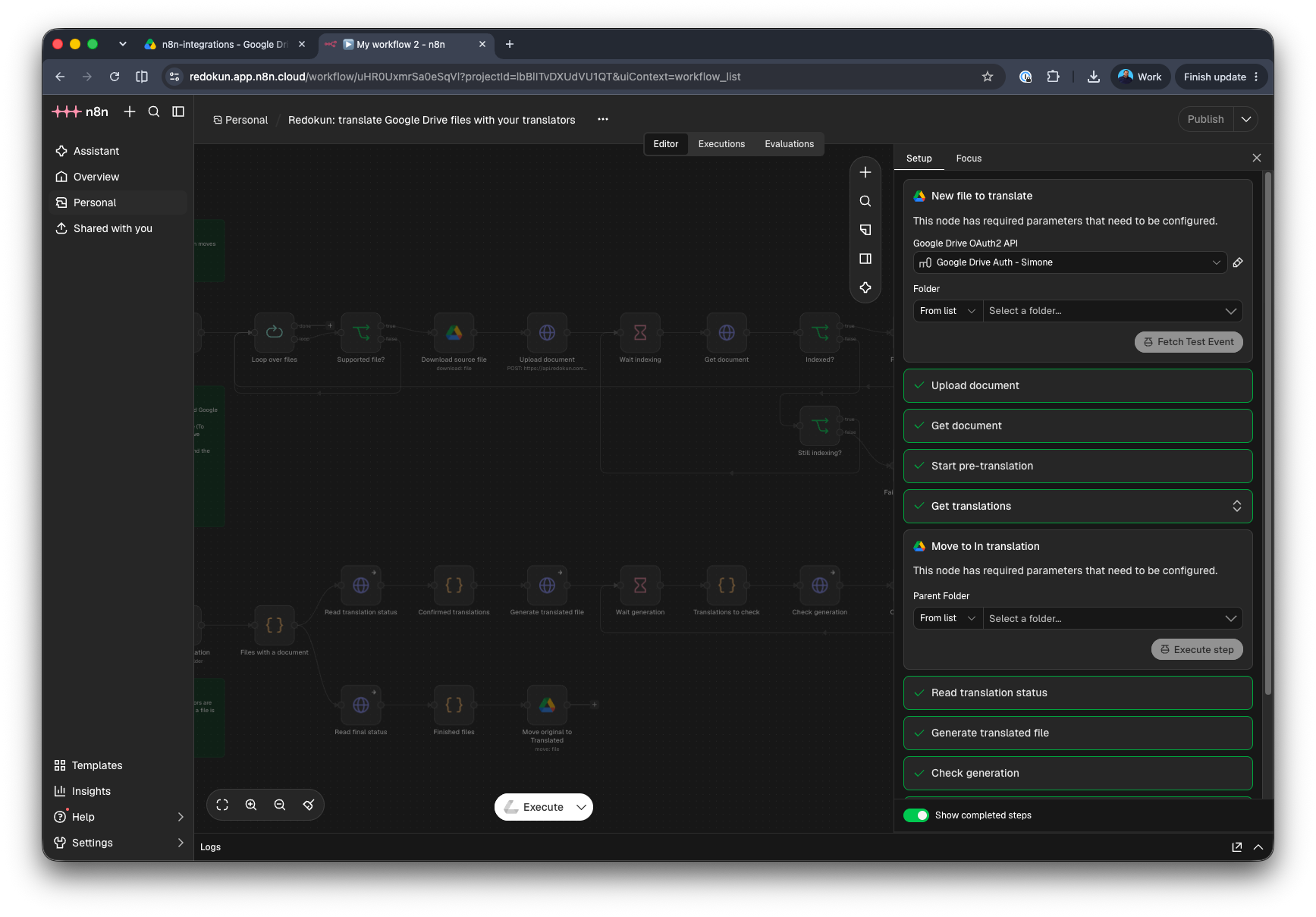
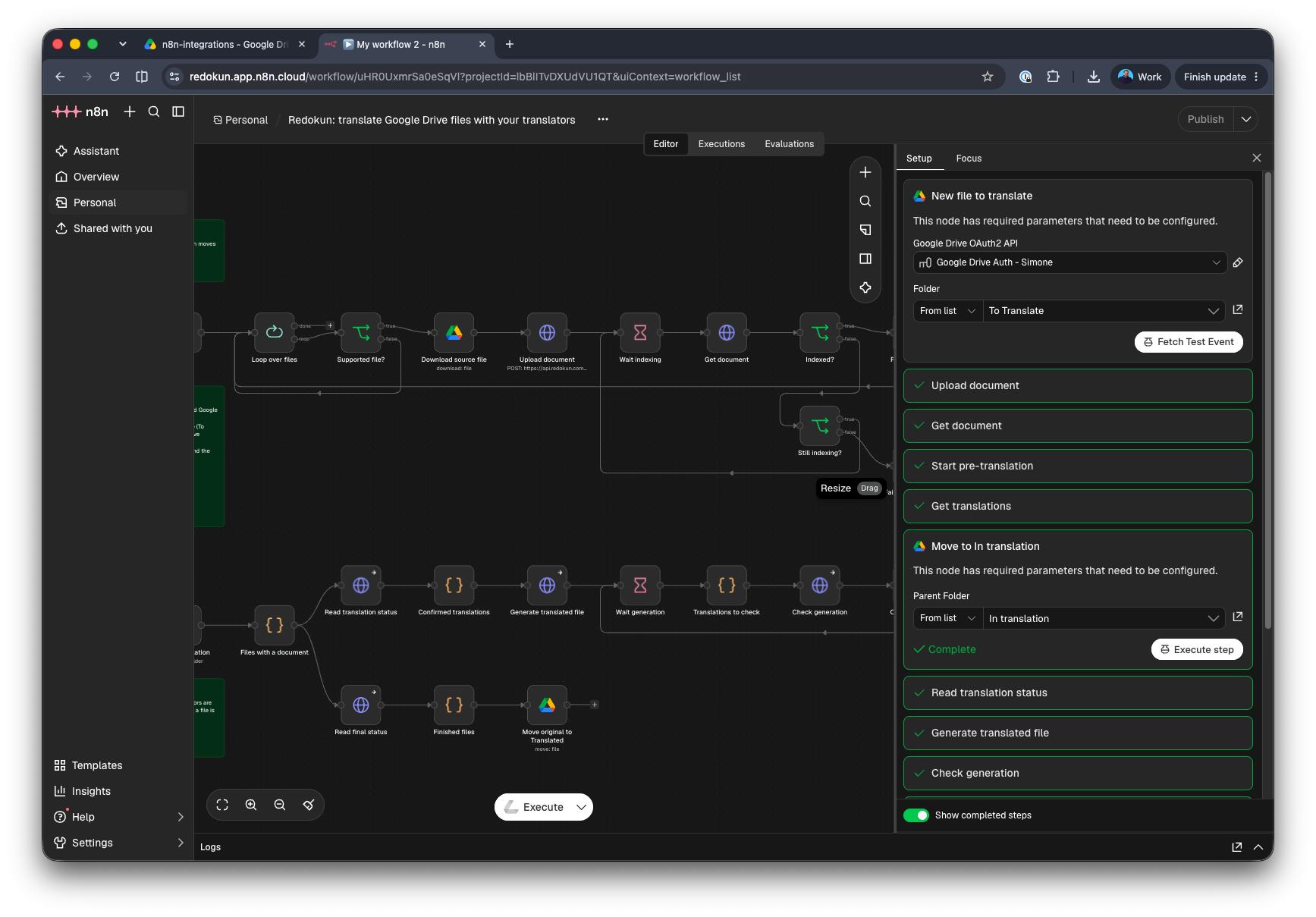
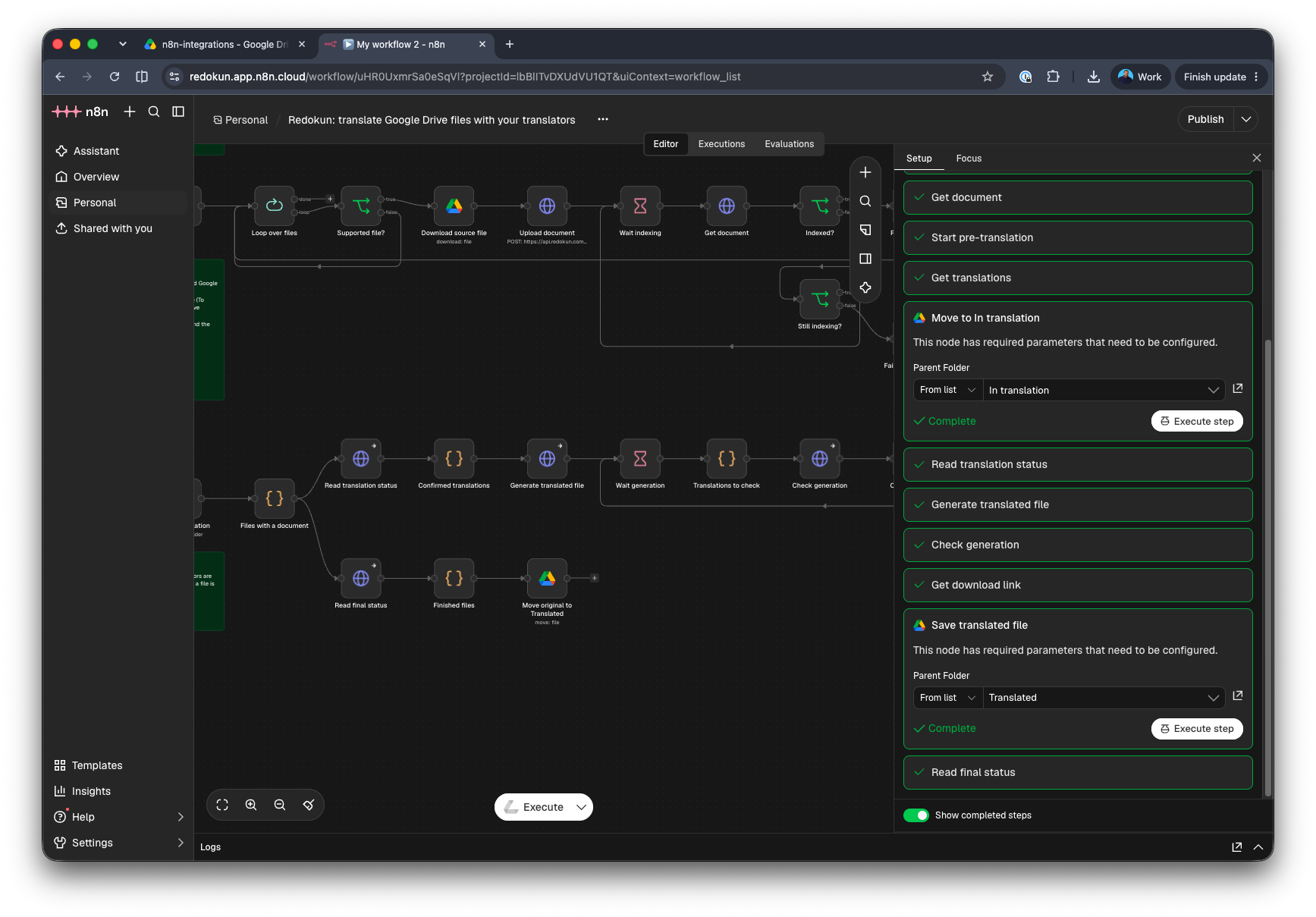
Open these three steps and choose a folder in each one:
- New file to translate: in Folder, choose To translate.
- Move to In translation: in Parent Folder, choose In translation.
- Save translated file: in Parent Folder, choose Translated.
⚙️ Step 5: Set the languages and the translators
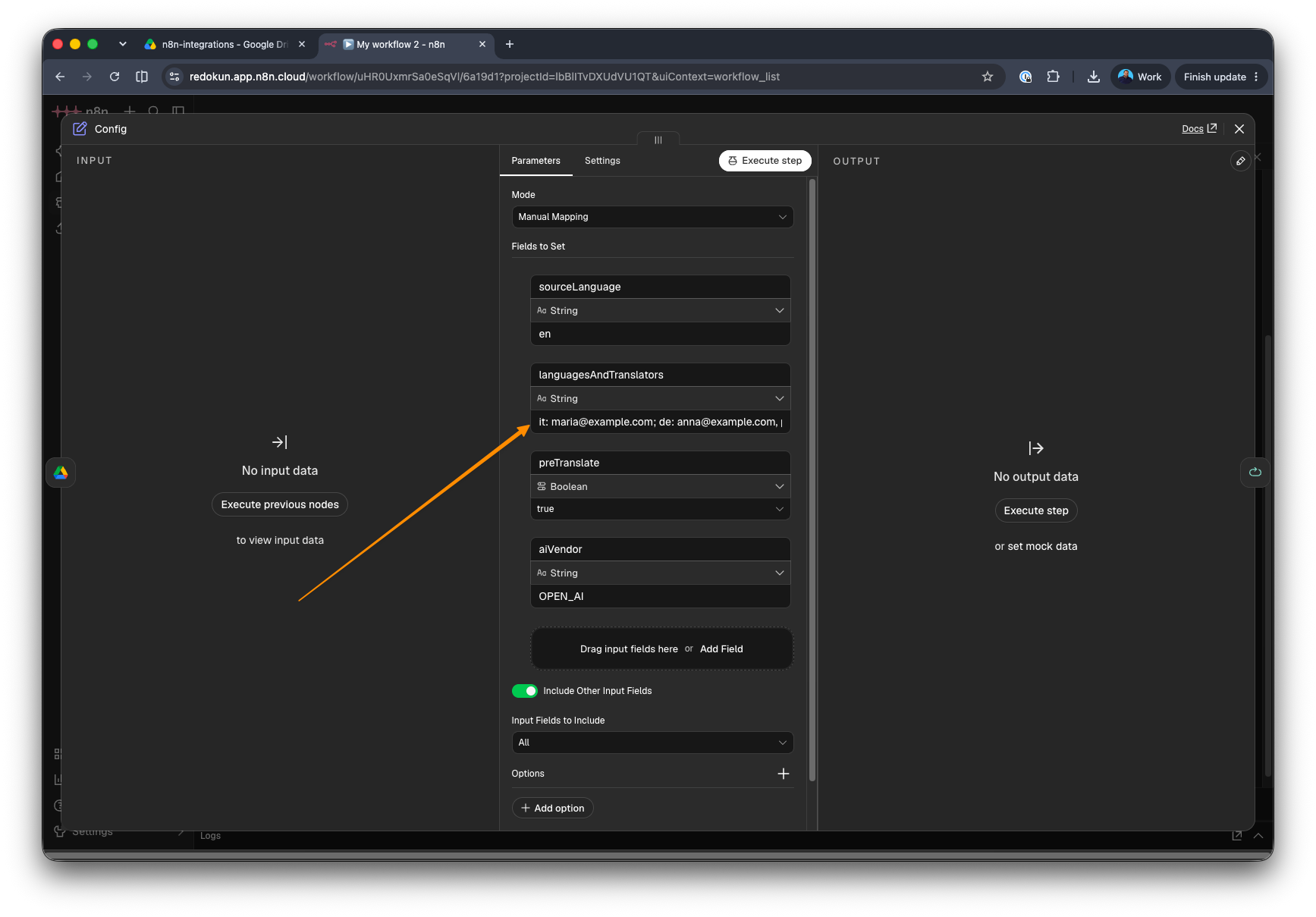
Open the step Config and change these values:
- sourceLanguage: the language code of your files, for example en.
- languagesAndTranslators: the languages to translate into, each with the email of its translators. Write it like this:
it: maria@example.com; de: anna@example.com, paul@example.com; fr
- Use a semicolon between languages and a comma between translators of the same language. A language with no email, like fr in the example, is created with no translator assigned.
- preTranslate: leave it on if you want your translators to find a first translation made with your Translation Memory and AI. Turn it off if they translate from zero.
- aiVendor: the AI engine for the first translation. Write OPEN_AI or DEEPL.
▶️ Step 6: Test it
Test the two halves one after the other, with one short file.
Send a file
-
Put a short file in the folder To translate.
- Open the step New file to translate and click Execute workflow.
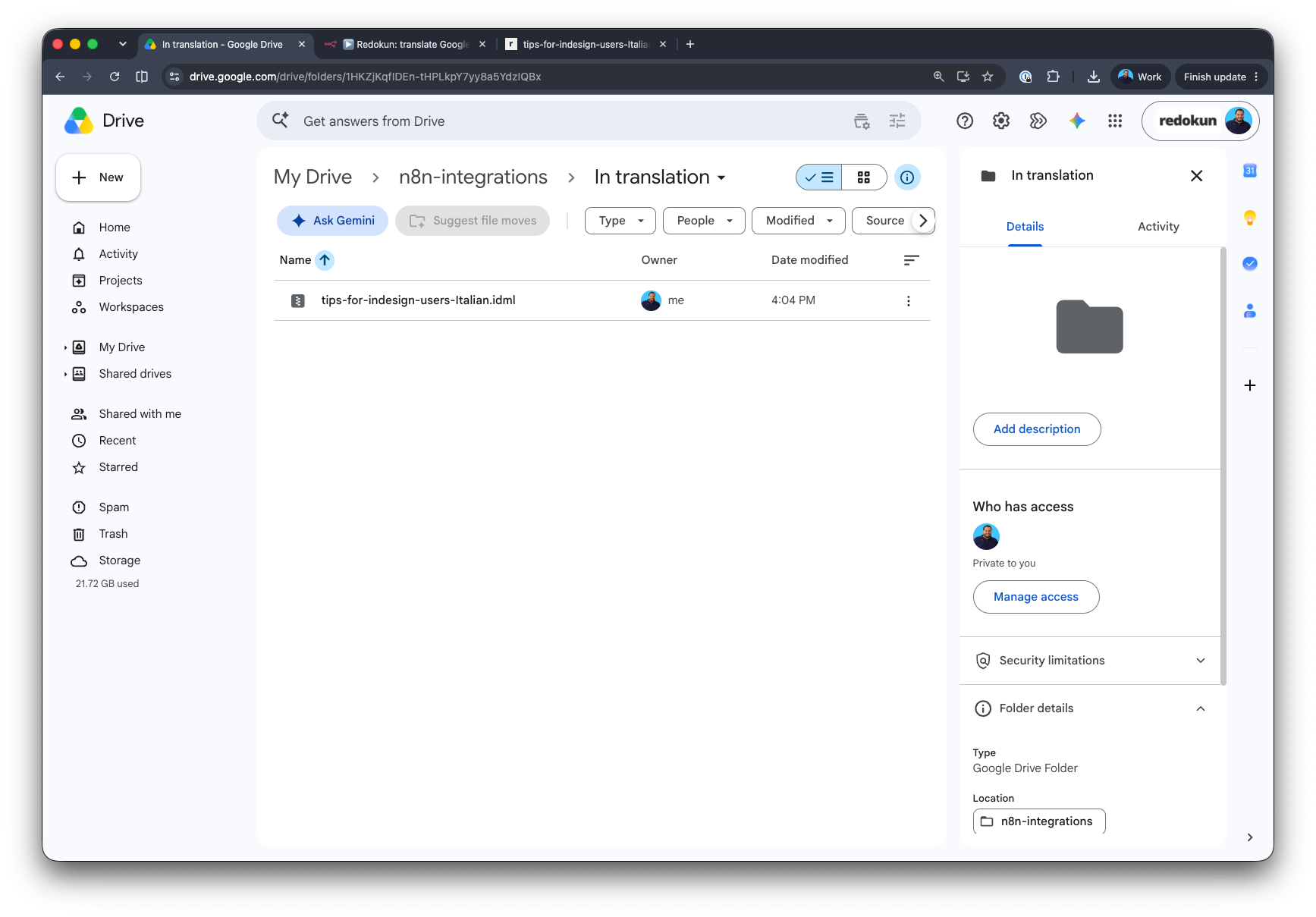
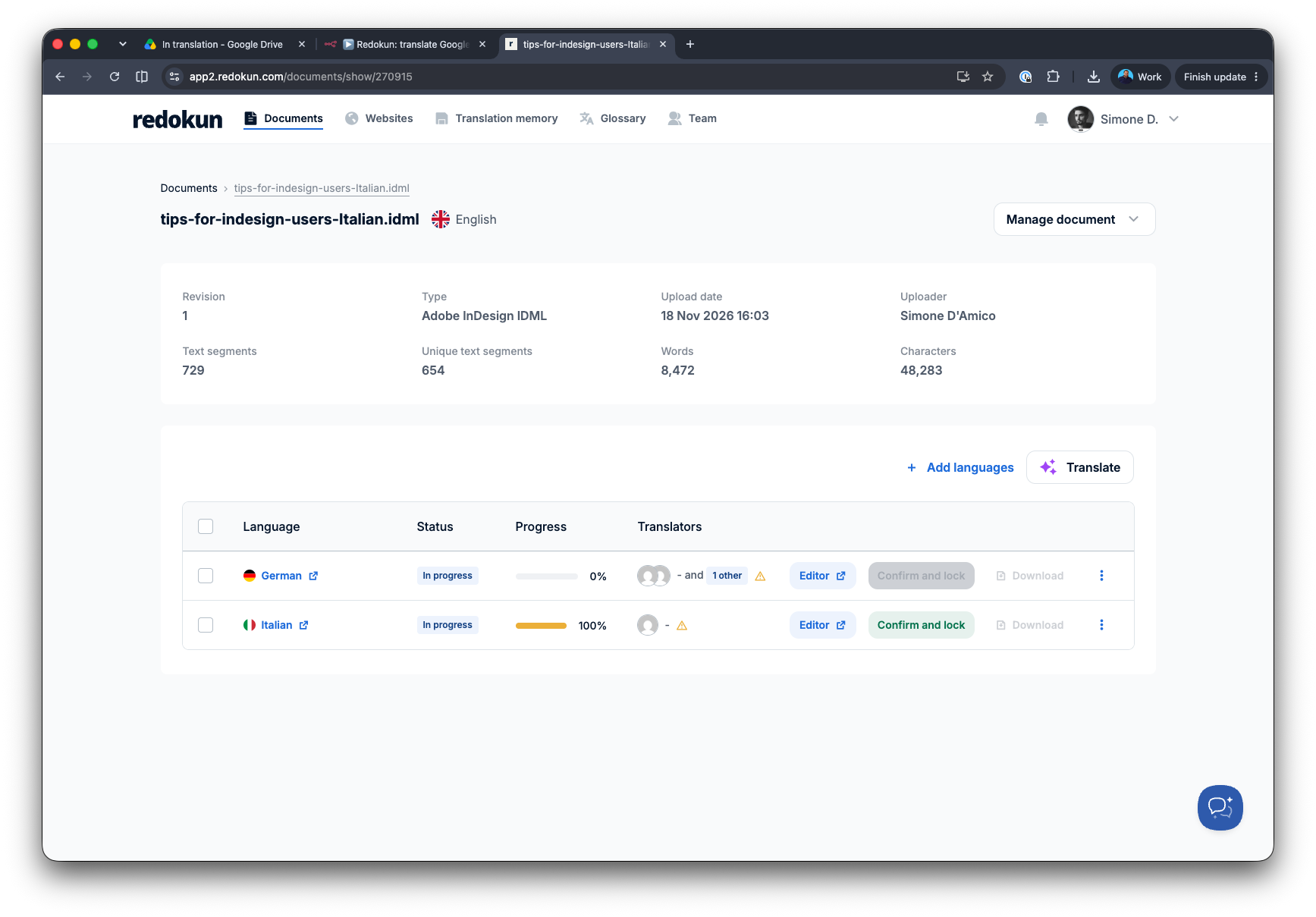
- Wait a minute or two. The file moves to In translation, and the document appears in your Redokun account with the translators assigned.
Confirm the translation
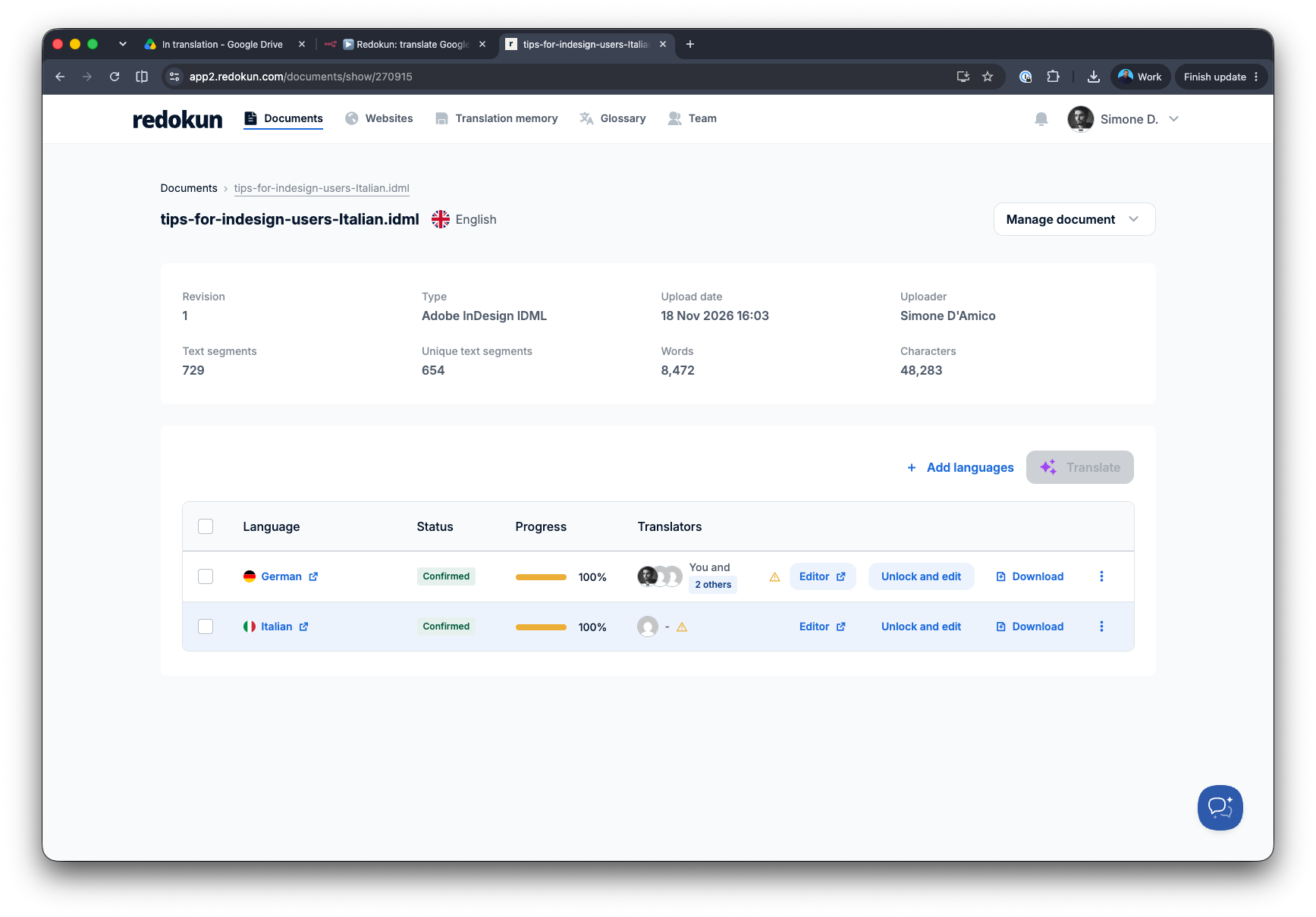
- Ask the translator to open the document in Redokun and confirm the translation. For a first test, you can use your own email as the translator.
Collect the translation
- Open the step Every hour and click Execute workflow, so you don't have to wait.
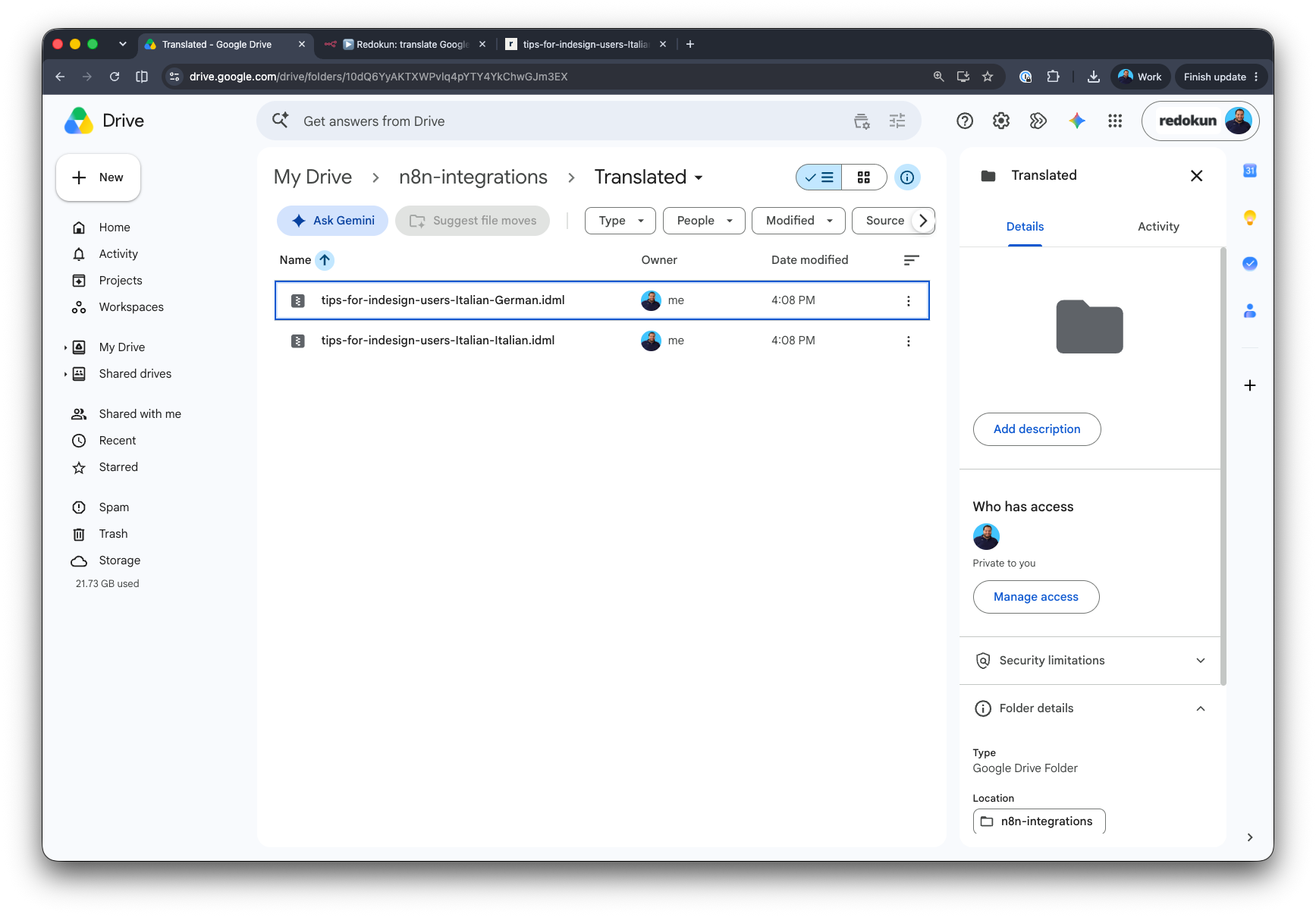
- Open the folder Translated. You find the translated file, named after the original file and the language, for example brochure-Italian.idml. When every language of a file is there, the original file moves to Translated too.
🚀 Step 7: Turn it on
Click Publish. From now on the workflow sends every new file in To translate, and checks for confirmed translations every hour.
🗂️ What each folder tells you
| Folder | What it means |
|---|---|
| To translate | Empty: everything was sent. A file that stays here was not accepted |
| In translation | These files are with your translators. At least one language is not confirmed yet |
| Translated | The translated files, and the originals whose languages are all done |
📄 Which files you can translate
InDesign (.idml), Word (.docx), PowerPoint (.pptx), Excel (.xlsx) and PDF files, and also .html, .srt, .txt, .xml, .json, .xliff and .xlf files. Google Docs, Sheets and Slides are converted to Word, Excel and PowerPoint before the upload.
🛠️ Troubleshooting
- A file stays in To translate: its format is not one of those listed above, or the workflow is not published. A file that was already in the folder before you published is not picked up: move it out and in again.
- A file stays in In translation: at least one language is not confirmed yet. Open the document in Redokun to see who is working on it. A confirmed language arrives within the hour.
- Redokun could not read the file: the file is damaged or protected by a password. Open it, save it again, and put the new copy in the folder.
- A translator didn't get the email: check the address in Config and ask them to look in the spam folder. You can also see the invitation in the document in Redokun.
- A translation is confirmed but the file doesn't arrive: your plan may not have enough words left for that document. The workflow tries again every hour.
- You put a file in In translation by hand: the workflow ignores it. Only the files it moved there itself are checked.
💡 Good to know
- Each language arrives when it is ready. You don't wait for all the languages: each translated file is saved as soon as its translator confirms it.
- The check runs every hour. To change it, open the step Every hour.
- Each language uses words from your plan, when the translated file is created.
- Your translators work in Redokun as usual. Nothing changes for them: they get the email from Redokun and translate in the web editor.
- Your documents stay in Redokun. Every file the workflow sends also appears in your Redokun account, with its translations.
🧩 Make it yours
- Use another storage. The steps that read and write files are the Google Drive ones: replace them with the OneDrive, SharePoint or Dropbox steps in n8n.
- Get a message when files are ready. Add a Slack or email step after Save translated file.
- Different translators for different folders. Import the template once per folder, each with its own Config.
💬 Feedback and support
Tell us which tools you'd like to connect next in the feedback form.
If you are stuck or something does not work, write to support@redokun.com and we will help you.