📁 Translate files from a Google Drive folder with n8n
Save a file in a Google Drive folder and find it translated in another folder a few minutes later. This tutorial sets up an n8n workflow that sends each new file to Redokun, translates it into the languages you choose, and saves the translated files back to Google Drive.
🧪 The Redokun API is in beta. Some things may not work as expected or may change. Tell us what works and what doesn't in the feedback form.
🔍 What this automation does
- You, or a colleague, save a file in a Google Drive folder.
- Within a minute, n8n notices the new file and uploads it to Redokun.
- Redokun translates it with your Translation Memory and AI, into every language you set.
- n8n saves one translated file per language in a second Google Drive folder.
Nobody has to open Redokun or n8n for this to happen.
✅ Before you start
- Complete Steps 1 and 2 of 🤖 Automate Redokun with n8n. You need your Redokun API key saved in n8n as the Redokun API credential.
- A Google account with access to Google Drive.
- About 15 minutes.
📂 Step 1: Prepare two folders in Google Drive
The workflow needs two separate folders: one for the files to translate, one for the translated files.
- In Google Drive, create a folder for the files to translate, for example To translate.
- Create a second folder for the results, for example Translated.

⚠️ The two folders must be different. If translated files were saved in the folder that the workflow watches, they would be translated again and again. The workflow checks this and stops with an error if the folders are the same.
🔐 Step 2: Connect Google Drive to n8n
- In n8n, open Credentials and click Create credential.
- Search for Google Drive OAuth2 API, select it, and click Continue.
- Click Sign in with Google, choose your account, and allow n8n to access Google Drive.
- Rename the credential so you can recognize it later, for example Google Drive, and click Save.

If you use a company Google account and the sign-in is blocked, ask your Google Workspace administrator to allow n8n.
📥 Step 3: Import the template
- In n8n, click Create workflow. An empty canvas opens.
- Click the three dots next to the workflow name, at the top of the page, and select Import, then From URL.
- Paste this link and confirm:
https://redokun-public-static-files.redokun.workers.dev/helpscout/downloadable/n8n-redokun-template-google-drive.json. The workflow appears on the canvas. - Save the workflow.


If your company blocks imports from a link, download the template file and choose Import, then From file instead.
🔗 Step 4: Connect your accounts and choose the folders
The template doesn't contain anyone's logins or folders, so the steps that talk to Google Drive and to Redokun show a small red mark. From one list, you select the credential for each of them and you choose two folders: the folder to watch and the folder where the translated files are saved.
- On the right side of the canvas, click the Open side panel icon and stay on the Setup tab.
-
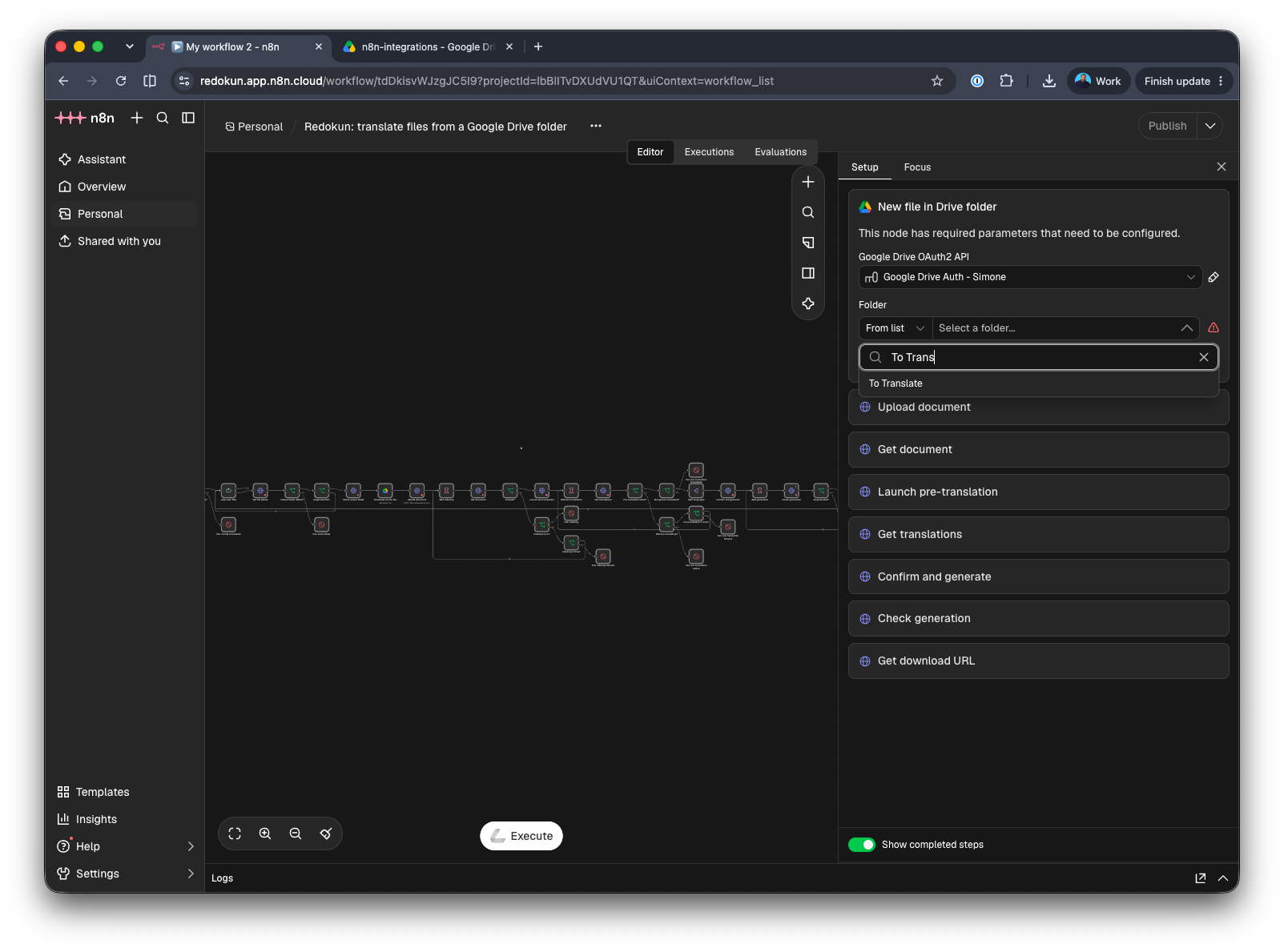
Click New file in Drive folder, the first step in the list. Select the Google Drive credential you created in Step 2, then choose the folder to watch: the folder for the files to translate, the first one you created in Step 1.
💡 When you choose the folder, n8n may show the message No data with the current filter could be found. This is not a problem: n8n looked for a file in the folder and the folder is still empty. You add a file in Step 6.
-
Click Save translated file. Select the same Google Drive credential, then choose the folder where the translated files are saved: the second one you created in Step 1. This folder must be different from the one you chose in the previous point.
- If Download source file is in the list, select the same Google Drive credential for it too.
-
For all the other steps in the list, select the Redokun API credential.
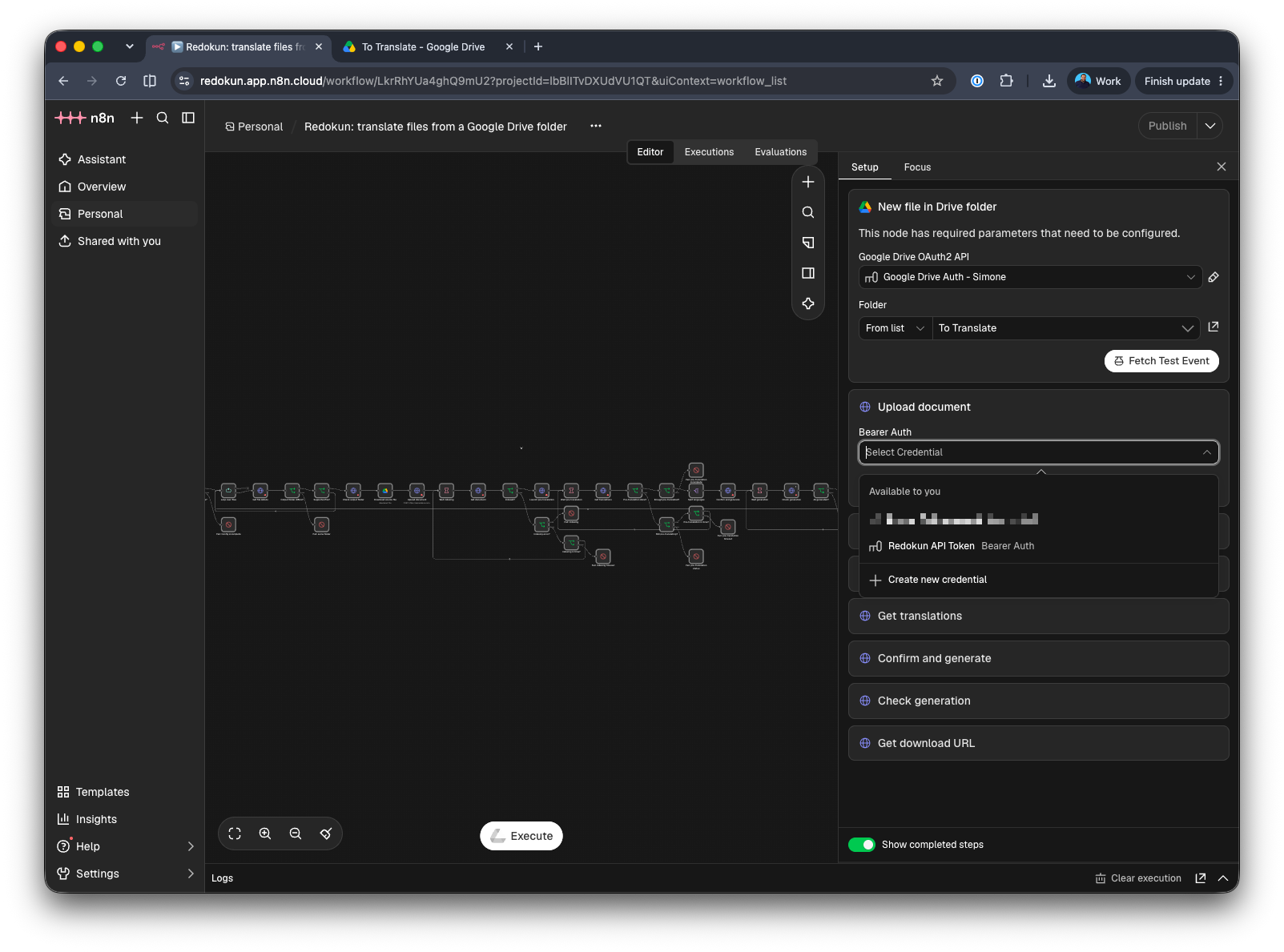
The workflow watches only the folder you choose in New file in Drive folder, not the folders inside it.
⚙️ Step 5: Set the languages
Double-click the second step, Config. It holds all the settings of the workflow:
- sourceLanguage: the language code of your files, for example en.
- targetLanguages: the language codes to translate into, separated by commas, for example it, de, fr-FR.
- aiVendor: the AI engine for the translation. Leave DEEPL unless you have a reason to change it.
- minPreTranslatedPercent: leave 100. The workflow generates the translated files only when the whole document has been translated.

You never need to change the other steps.
▶️ Step 6: Test it
- Save a short document, for example a Word file of a few lines, in the folder for the files to translate.
- In n8n, click Execute at the bottom of the canvas.
- Wait a few minutes. The steps on the canvas turn green as they complete.
- Open the folder for the translated files in Google Drive. You find one file per language, named after the original file and the language, for example brochure-Italian.docx.

🚀 Step 7: Turn it on
When the test works, click Publish in the top-right corner. From now on n8n checks the folder every minute and translates each new file on its own. You can close n8n.
📄 Which files you can translate
- Office and design files: Word (.docx), PowerPoint (.pptx), Excel (.xlsx), InDesign (.idml) and PDF files are translated as they are. The other formats accepted are .html, .srt, .txt, .xml, .json, .xliff and .xlf.
- Google Docs, Sheets and Slides: they are translated too. The translated file comes back as a Word, Excel or PowerPoint file, which you can open with Google Drive.
- Other files, such as images: the workflow skips them.
🛠️ Troubleshooting
If something goes wrong, the workflow stops and n8n shows the reason in Executions. These are the most common messages.
- No data with the current filter could be found: the folder you watch is empty. Save a file in it and click Execute again.
- Setup is incomplete: the source language or the target languages are empty in Config, or no folder is chosen in Save translated file. Complete them and run the workflow again.
- The output folder is the folder this workflow watches: in Step 4 you chose the same folder in both steps. Choose a different folder in Save translated file.
- Redokun could not read the file: the file is damaged or protected by a password. Open it, save it again, and put the new copy in the folder.
- The pre-translation is below the minimum set in Config: part of the document was not translated automatically. Open the document in Redokun, complete the translation there, and download the file from the web app.
- A message about words or your plan: your plan has no words left for this document. See your usage in Redokun.
💡 Good to know
- Each language uses words from your plan. A document translated into three languages counts three times. Test with short documents.
- Only new files are translated. Files that were already in the folder before you published the workflow are not picked up. To translate one of them, move it out of the folder and back in.
- Several files at once are fine. The workflow translates them one after the other.
- Translations are confirmed and locked. To edit one afterwards, unlock it in the Redokun web app, make your changes, and download the file again.
- Your documents stay in Redokun. Every file the workflow translates also appears in your Redokun account, with its translations.
🔄 Using Zapier, Make or Power Automate?
The same steps apply. Share the template and the Redokun API documentation with an AI assistant, such as Claude, and ask it to guide you through rebuilding the workflow in your tool. We can't offer support for these versions yet.
💬 Feedback and support
Tell us which tools you'd like to connect next in the feedback form.
If you are stuck or something does not work, write to support@redokun.com and we will help you.