✉️ Translate HubSpot marketing emails with Redokun and n8n
Paste the link of a HubSpot marketing email in a form and get a translated copy for each language, ready to review. This tutorial sets up an n8n workflow that reads the email, translates its texts with Redokun, and creates the translated copies in HubSpot as drafts.
🧪 The Redokun API is in beta. Some things may not work as expected or may change. Tell us what works and what doesn't in the feedback form.
🧩 This workflow is an example. It works as it is, and it is meant as a starting point: you can change it to fit the way your team works. We can help with the Redokun side, but we can't offer support for changes to the workflow.
🔍 What this automation does
- You paste the link of a HubSpot marketing email in a form.
- n8n reads the texts of the email and sends them to Redokun.
- Redokun translates them with your Translation Memory and AI, into every language you set.
- n8n creates one copy of the email per language in HubSpot, with the translated texts and the same layout.
The copies are drafts. Nothing is sent: you review each copy in HubSpot and send it when you are ready.
✅ Before you start
- n8n set up for Redokun. Follow 🤖 Automate Redokun with n8n to create your n8n account and your Redokun credential.
- A HubSpot account with marketing emails, and the permission to create a Service Key. In HubSpot this needs Developer Tools access: if you don't see the menu in Step 1, ask your HubSpot administrator.
- An email made with the drag-and-drop editor. This is the standard editor for marketing emails in HubSpot.
- About 15 minutes.
🔑 Step 1: Create a Service Key in HubSpot
A Service Key lets n8n read and create emails in your HubSpot account.
- In HubSpot, go to Settings, then Integrations, then Service Keys.
- Click Create service key.
- Give it a name you will recognize, for example Redokun n8n.
- In the scopes, select content.
- Click Create and copy the key. Keep it safe: it works like a password.

🔐 Step 2: Add the key to n8n
- In n8n, open Credentials and click Create credential.
- Search for HubSpot Service Key and select it.
- Paste the key and click Save.

📥 Step 3: Import the template
- In n8n, create a new workflow.
- Open the menu with the three dots at the top right and choose Import from URL.
- Paste this link and confirm:
https://redokun-public-static-files.redokun.workers.dev/helpscout/downloadable/n8n-redokun-template-hubspot-email.json

🔌 Step 4: Connect your credentials
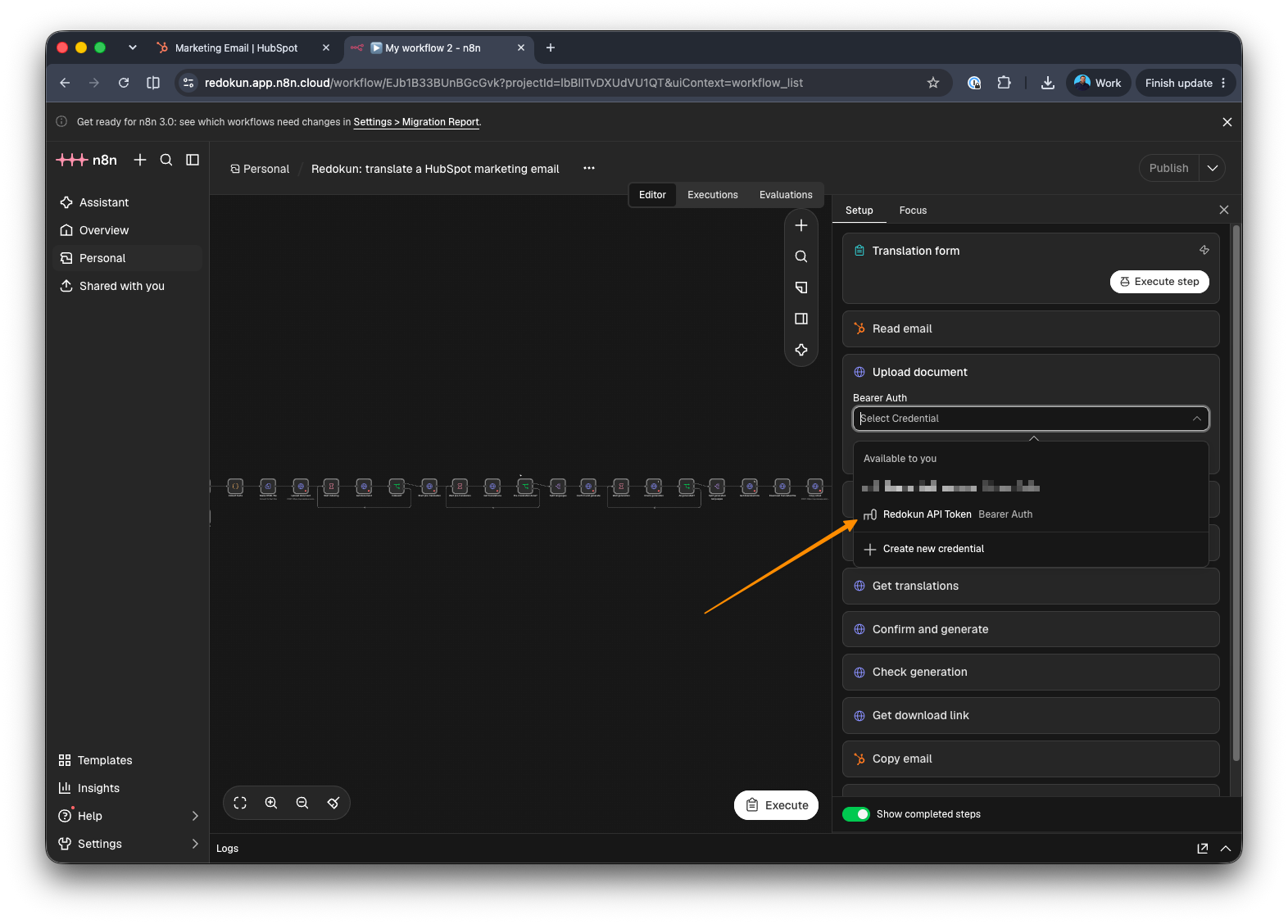
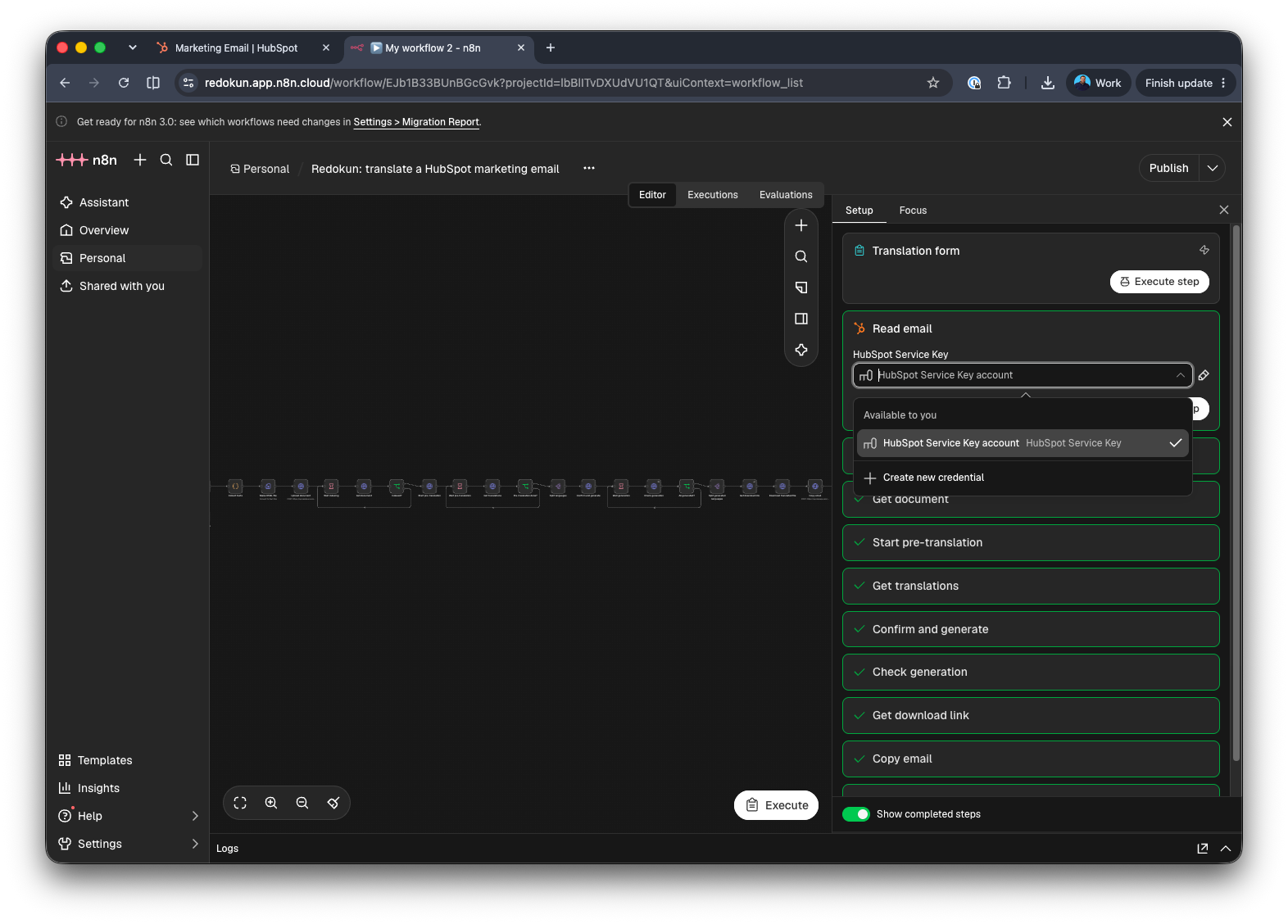
- Open the side panel and go to the Setup tab.
-
For each Redokun step, select your Redokun credential.
-
For the three HubSpot steps (Read email, Copy email and Save translated draft), select the HubSpot Service Key credential you created in Step 2.
⚙️ Step 5: Set the languages
Open the step Config and change these values:
- sourceLanguage: the language code of your emails, for example en.
- targetLanguages: the language codes to translate into, separated by commas, for example it, de, fr-FR.
- aiVendor: the vendor you want to use (eg. Open AI or Google Translate).
Leave emailId as it is.

▶️ Step 6: Translate your first email
-
In HubSpot, open the email you want to translate and copy the address from your browser. It looks like
https://app.hubspot.com/email/1234567/edit/123456789012/content.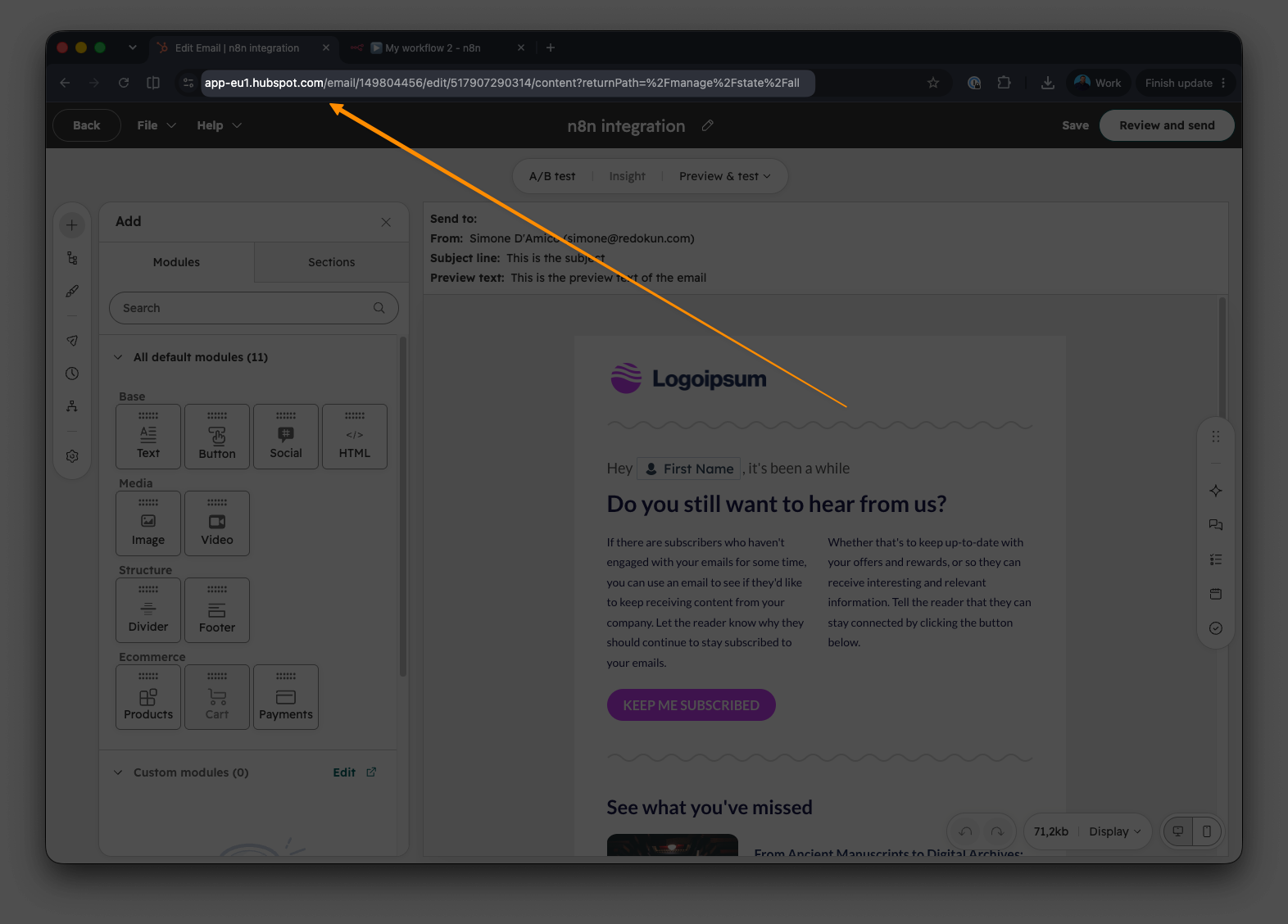
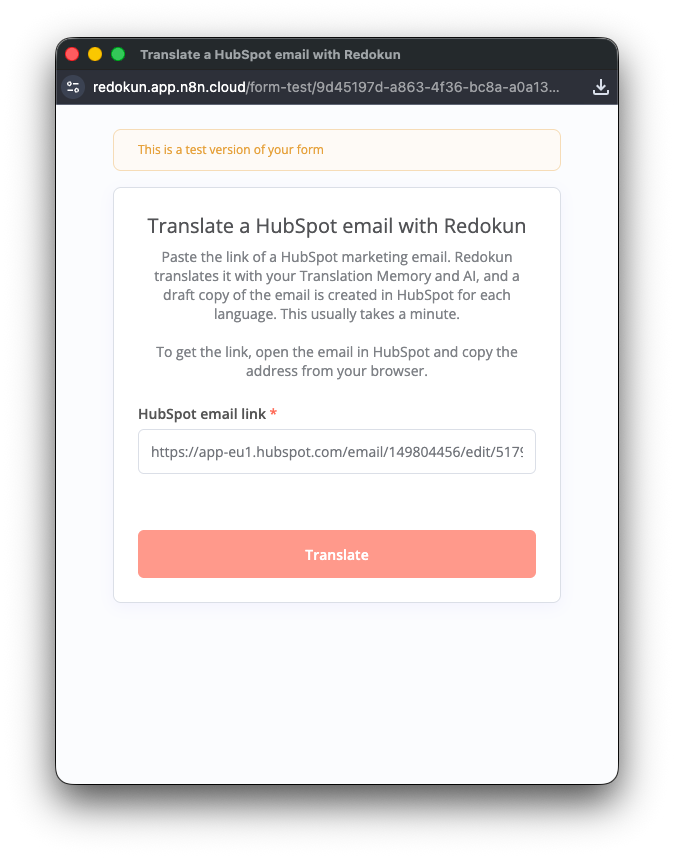
- In n8n, click Execute workflow. A form opens.
-
Paste the address in HubSpot email link and click Translate.
- Wait about a minute. The last page of the form lists the copies that were created.
- In HubSpot, go to Marketing, then Email. You find one draft per language, named after the original email and the language, for example Spring newsletter (it).


Open each copy and read it before you send it.
🔗 Step 7: Share the form with your team
To use the form without opening n8n, click Publish in the workflow. The step Translation form then shows a Production URL: anyone with that link can translate an email by pasting its address.
📄 What gets translated
The workflow translates the subject, the preview text, and the texts inside the email: text blocks, buttons, the footer, and the descriptions of the images.
It keeps as they are:
- the layout, the colors, the fonts and the images;
- the links, including the unsubscribe links;
- the personalization tokens, such as the first name of the contact.
🛠️ Troubleshooting
- The link is not a HubSpot email link: the form received an address that doesn't contain an email. Open the email in HubSpot and copy the address from the browser while the editor is open.
- Read email fails: the Service Key can't read the email. Check that the key has the scope content, and that the email belongs to the HubSpot account where you created the key.
- Upload document fails: n8n can't reach your Redokun account. Check the Redokun credential in the Setup tab.
- Confirm and generate fails with a payment error: your Redokun plan doesn't have enough words left for this email.
- A translated copy is missing some text: the email may contain a kind of block that the workflow doesn't read. Tell us which one in the feedback form.
💡 Good to know
- Each run creates new copies. If you change the original email and run the workflow again, you get a new translated copy per language, next to the previous ones. Delete the old drafts before you run it again. The text you didn't change is translated again from your Translation Memory, so it stays the same.
- Fix translations in Redokun, not in HubSpot. A correction made in the HubSpot editor is lost the next time you run the workflow. A correction made in Redokun is saved in your Translation Memory and comes back every time.
- Each language uses words from your plan. An email translated into three languages counts three times.
- Your texts stay in Redokun. Each run adds a document to your Redokun account, named after the HubSpot email, with its translations.
- HubSpot can also translate emails on its own, on some of its plans. Use this workflow when you want the same Translation Memory, glossary and review process you use for your other documents in Redokun.
🧩 Make it yours
Some changes that teams often want:
- Review before the copies are created. Stop the workflow after the pre-translation, let your translators confirm the text in Redokun, and create the HubSpot copies afterwards.
- Update the existing copies instead of creating new ones when the original email changes.
- Send a message in Slack or by email when the translated drafts are ready.
💬 Feedback and support
Tell us which tools you'd like to connect next in the feedback form.
If you are stuck or something does not work, write to support@redokun.com and we will help you.