📁 Translate files from a SharePoint folder with Power Automate
Save a file in a SharePoint folder in Microsoft 365 and find it translated in another folder a few minutes later. This tutorial sets up a Power Automate flow that sends each new file to Redokun, translates it into the languages you choose, and saves the translated files back to SharePoint.
🔔 The API is currently enabled on request. If you're on the Premium or on Basic plan, write to support@redokun.com and we'll turn it on for your account.
🧪 The Redokun API is in beta. Some things may not work as expected or may change. Tell us what works and what doesn't in the feedback form.
🧩 This flow is an example. It works as it is, and it is meant as a starting point: you can change it to fit the way your team works. We can help with the Redokun side, but we can't offer support for changes to the flow.
🔍 What this automation does
- You, or a colleague, save a file in a SharePoint folder.
- Within a few minutes, Power Automate notices the new file and uploads it to Redokun.
- Redokun translates it with your Translation Memory and AI, into every language you set.
- Power Automate saves one translated file per language in a second SharePoint folder.
Nobody has to open Redokun or Power Automate for this to happen.
✅ Before you start
- A Redokun API key. Follow the steps in How to get started and choose the scope Read and write.
- A Microsoft 365 account with SharePoint.
- A Power Automate Premium license. The flow calls the Redokun API, and Power Automate includes calls to other services only in its Premium license. If you don't have it, Power Automate offers a free trial when you open the flow.
- About 20 minutes.
📂 Step 1: Prepare two folders in SharePoint
The flow needs two separate folders in a document library: one for the files to translate, one for the translated files.
- Open the SharePoint site you want to use and go to Documents. If you don't have a site yet, create one: see Create a team site in SharePoint in the Microsoft documentation.
- Create a folder for the files to translate, for example To translate.
- Create a second folder for the results, for example Translated.

⚠️ The folder for the results must be outside the folder for the files to translate. If translated files were saved in the folder that the flow watches, they would be translated again and again. The flow checks this and stops with an error.
📥 Step 2: Import the flow
- Download the flow package. It is a .zip file: don't unzip it.
-
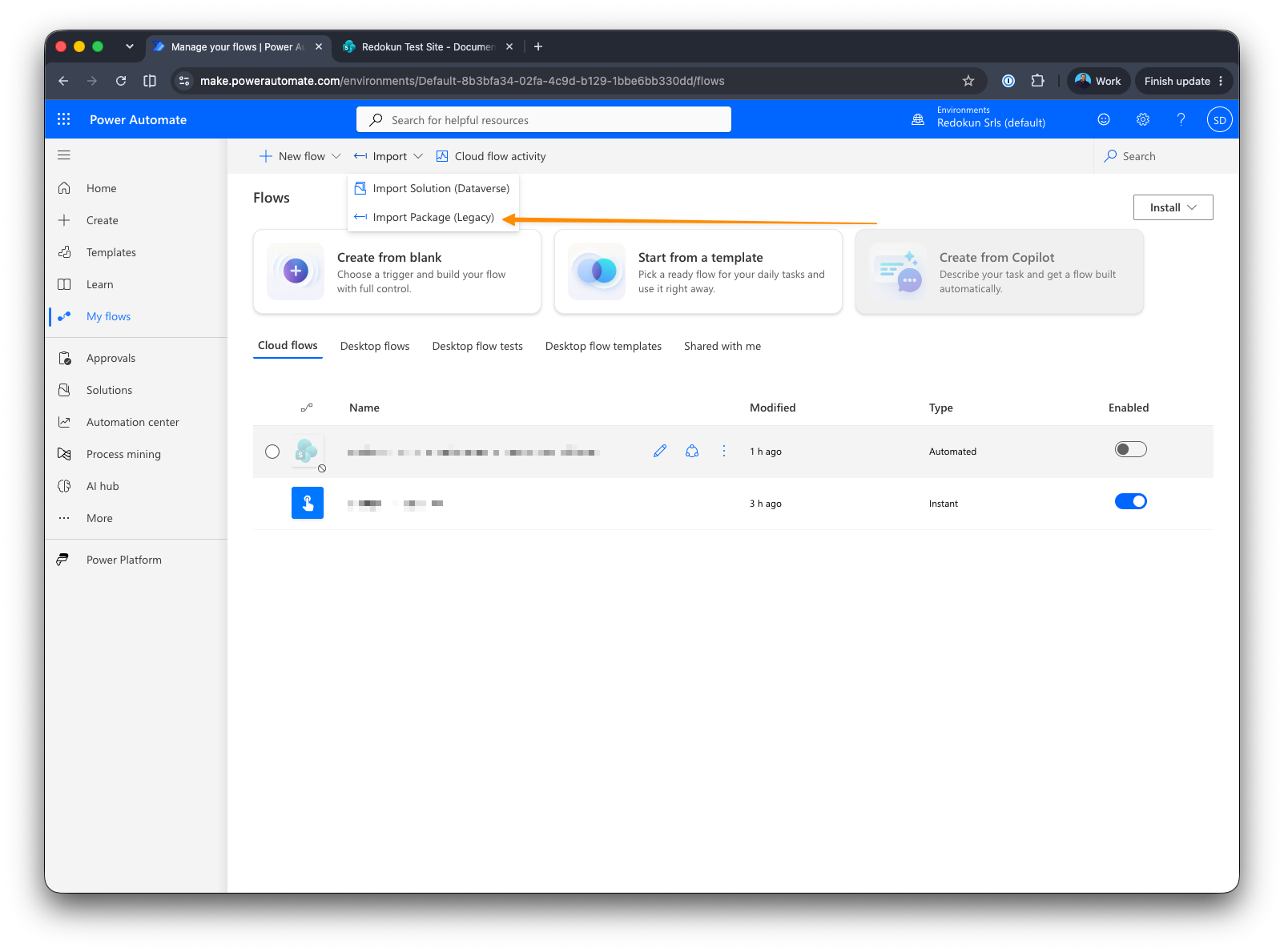
In Power Automate, go to My flows, click Import, then Import Package (Legacy).
- Upload the .zip file.
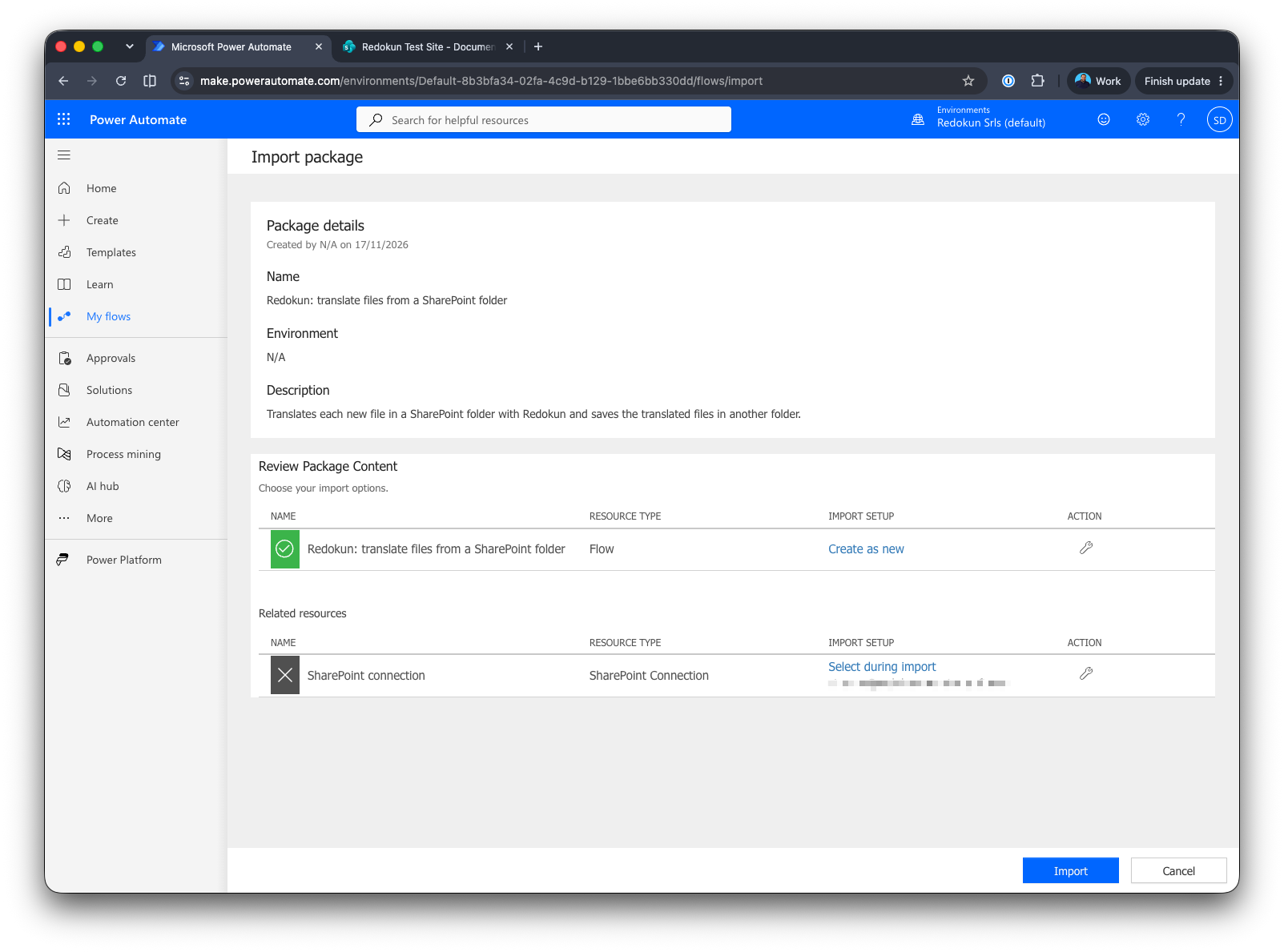
- In the row of the flow, click the wrench icon and choose Create as new.
- In the row of the SharePoint connection, click the wrench icon and select your SharePoint connection. If the list is empty, click Create new and sign in.
-
Click Import, then Open flow.
👀 Step 3: Choose the folder to watch
The flow arrives with an example site that doesn't exist. Replace it with yours.
- Click the first step, When a file is created in a folder.
- In Site Address, choose your SharePoint site from the list.
- In Folder Id, click the folder icon and select the folder for the files to translate.

💡 Your site is not in the list? Choose Enter custom value and paste the address of the site. To find it, open the site in your browser and copy the address up to the name of the site, for example https://yourcompany.sharepoint.com/sites/Marketing . Leave out everything after the site name.
Until you choose your own site, Power Automate shows an error on this step and doesn't let you save the flow. This is expected.
⚙️ Step 4: Fill in the settings
The six steps after the trigger hold all the settings of the flow. Click each one and change its Value:
- Redokun API key: replace the placeholder text with your API key.
- Source language: the language code of your files, for example en.
-
Target languages: the language codes to translate into, separated by commas, for example it, de, fr-FR.
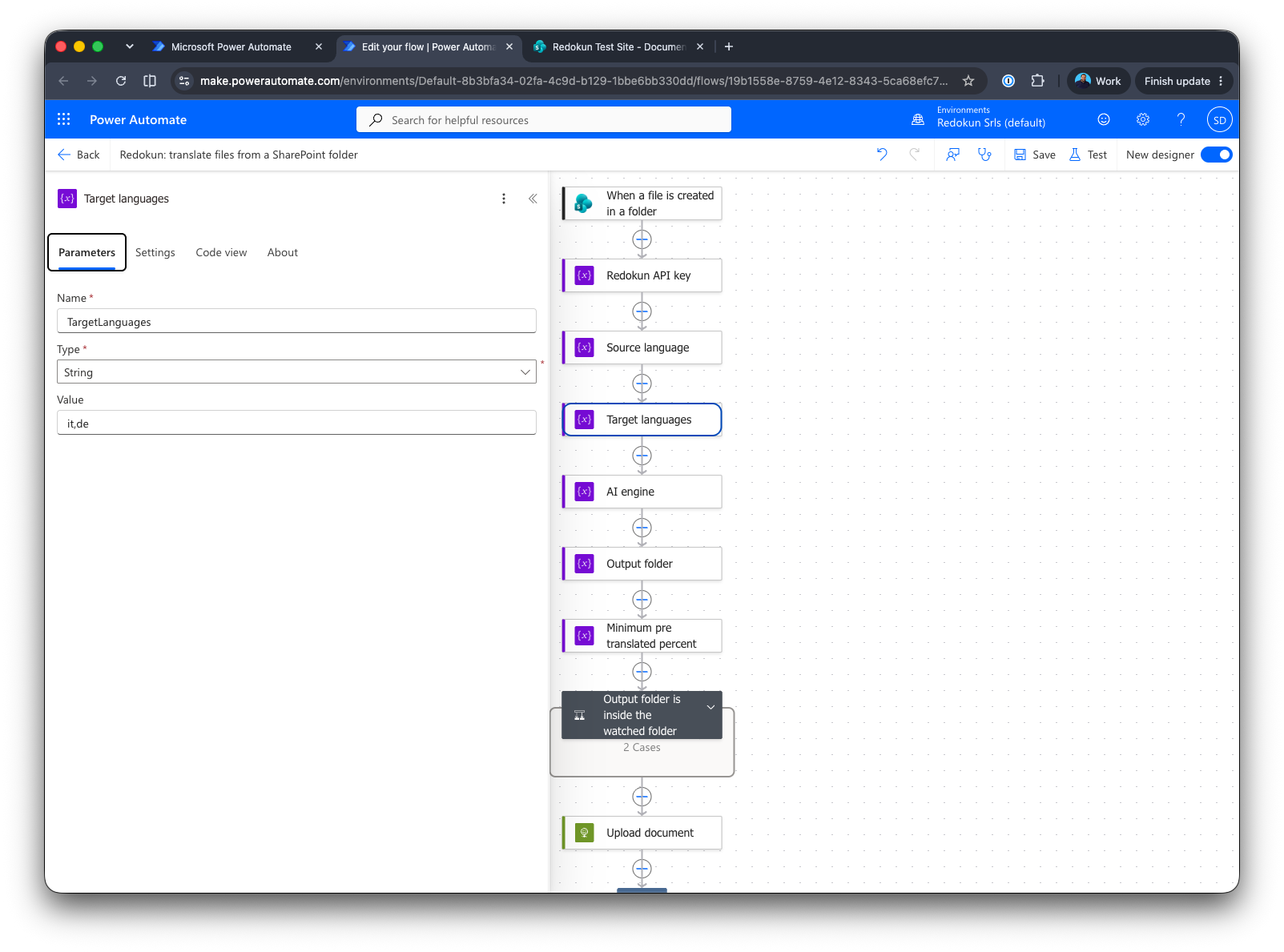
- AI engine: the AI engine for the translation.
- Output folder: the path of the folder for the translated files, for example /Shared Documents/Translated. It has the same form as the path you see in Folder Id in the trigger, with the name of the other folder at the end.
- Minimum pre translated percent: leave 100. The flow creates the translated files only when the whole document has been translated.
You don't need to change the other steps.
🚀 Step 5: Save the flow and turn it on
- Click Save.
- Click Back to go to the page of the flow.
- Click Enabled. An imported flow is off until you turn it on.

▶️ Step 6: Test it
- Upload a short document, for example a Word file of a few lines, to the folder for the files to translate.
- Wait a few minutes. Power Automate checks the folder at intervals, so the flow doesn't start at once.
- On the page of the flow, look at 28-day run history: a new run appears, first as Running, then as Succeeded.
- Open the folder for the translated files in SharePoint. You find one file per language, named after the original file and the language, for example brochure-Italian.docx.

From now on the flow translates each new file in the folder on its own.
📄 Which files you can translate
The flow sends to Redokun any file you save in the folder. Redokun accepts Word (.docx), PowerPoint (.pptx), Excel (.xlsx), InDesign (.idml) and PDF files, and also .html, .srt, .txt, .xml, .json, .xliff and .xlf files. For any other file, the run fails on the step Upload document and nothing is translated.
🛠️ Troubleshooting
When something goes wrong, the run is marked as Failed in 28-day run history. Open the run to see which step stopped and why.
- The flow doesn't start: check that the flow is turned on, and that the file is new. The flow picks up only the files added to the folder after you turned it on.
- You can't save the flow, and the error names contoso.sharepoint.com: the trigger still has the example site. Choose your site and folder as in Step 3, then save.
- The output folder must be outside the folder this flow watches: the path in Output folder is the watched folder or a folder inside it. Set a folder outside it.
- Redokun could not read the file: the file is damaged or protected by a password. Open it, save it again, and upload the new copy.
- Conflict on the step Start pre translation: this is not an error. Redokun runs two pre-translations at a time, so when you upload several files together the flow waits and tries again. The run goes on by itself.
- Redokun did not start the pre-translation: the message that follows explains why. For example, your plan may not include AI translation.
- The pre-translation is below the minimum: part of the document was not translated automatically. Open the document in Redokun and complete the translation there.
- The translated file could not be created, with PaymentRequired on the step Confirm and generate: your plan doesn't have enough words left for this document. You may still have words left, but fewer than the document needs. The languages already saved are not affected.
💡 Good to know
- Each language uses words from your plan. A document translated into three languages counts three times. Test with short documents.
- Translations are confirmed and locked. To edit one afterwards, unlock it in the Redokun web app, make your changes, and download the file again.
- Your documents stay in Redokun. Every file the flow translates also appears in your Redokun account, with its translations.
- Who can see the API key. The key is hidden in the run history, but anyone who can edit the flow can read it in the step Redokun API key. Share the flow only with people you trust.
- About the trigger. The flow uses the SharePoint trigger When a file is created in a folder, which Microsoft marks as deprecated. It still works, and it is the trigger that lets you import this flow into your own organization.
🧩 Make it yours
The flow translates with AI and saves the file with no manual step. A common change is to let your translators review the text first: remove the steps from For each target language onwards, and let your team download the files from Redokun when the translation is confirmed. You can also add a step at the end to send a message in Microsoft Teams or an email when the files are ready.
💬 Feedback and support
Tell us which tools you'd like to connect next in the feedback form.
If you are stuck or something does not work, write to support@redokun.com and we will help you.