🌐 Connecting your WordPress website with Redokun
WordPress translation is in beta
Some steps and screens may change while we finish it. If something doesn't match what you see, or doesn't work, contact us, and we'll help you get connected.
Install the Redokun plugin on your WordPress site and connect it to Redokun to translate your pages and posts and send the translations back to WPML.
Before you start
You'll need:
- A WordPress site served over HTTPS. Redokun only accepts site addresses that start with https://.
- WPML Multilingual CMS 5.0.0 or later and WPML String Translation 5.0.0 or later, both installed and active.
- Admin access to your WordPress site so that you can install the plugin.
- The right role in Redokun. Translators can't connect websites. If you're a translator, ask your Team Leader to do it.
Connecting WordPress to Redokun
Step 1: Install the Redokun plugin in WordPress
- In your WordPress dashboard, go to Plugins → Add Plugin.
- Search for Redokun Translator.
- On the Redokun Translator card, click Install Now.
- When the installation finishes, click Activate.
Step 2: Copy your site URL and Connection key
- In your WordPress dashboard, go to Redokun → Redokun Settings.
-
Copy the Site URL and the Connection key. You'll paste both into Redokun in the next step.
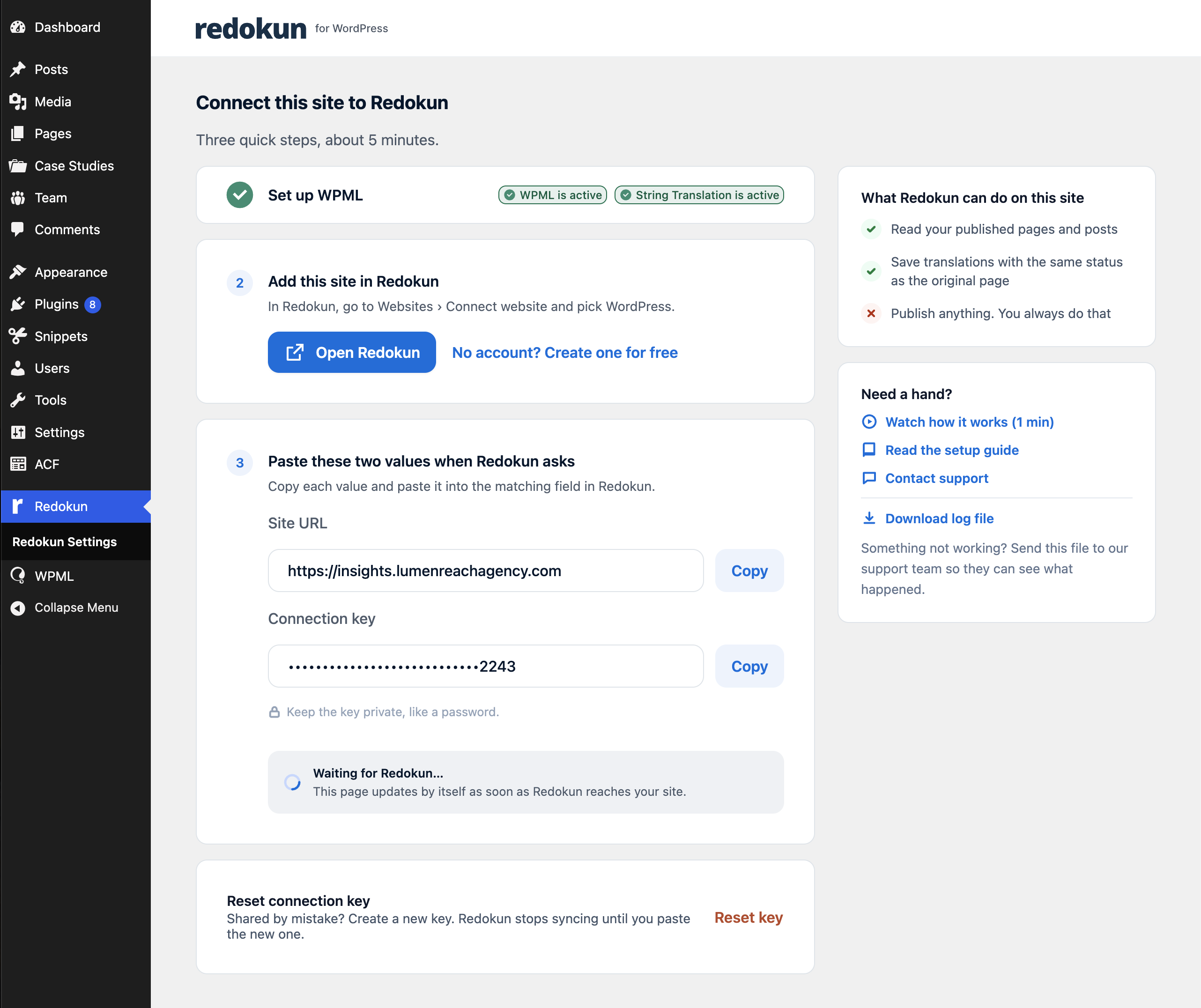
🔒 The connection key gives Redokun access to your site's content. Keep it private, the same way you would a password.
Step 3: Connect the site in Redokun
-
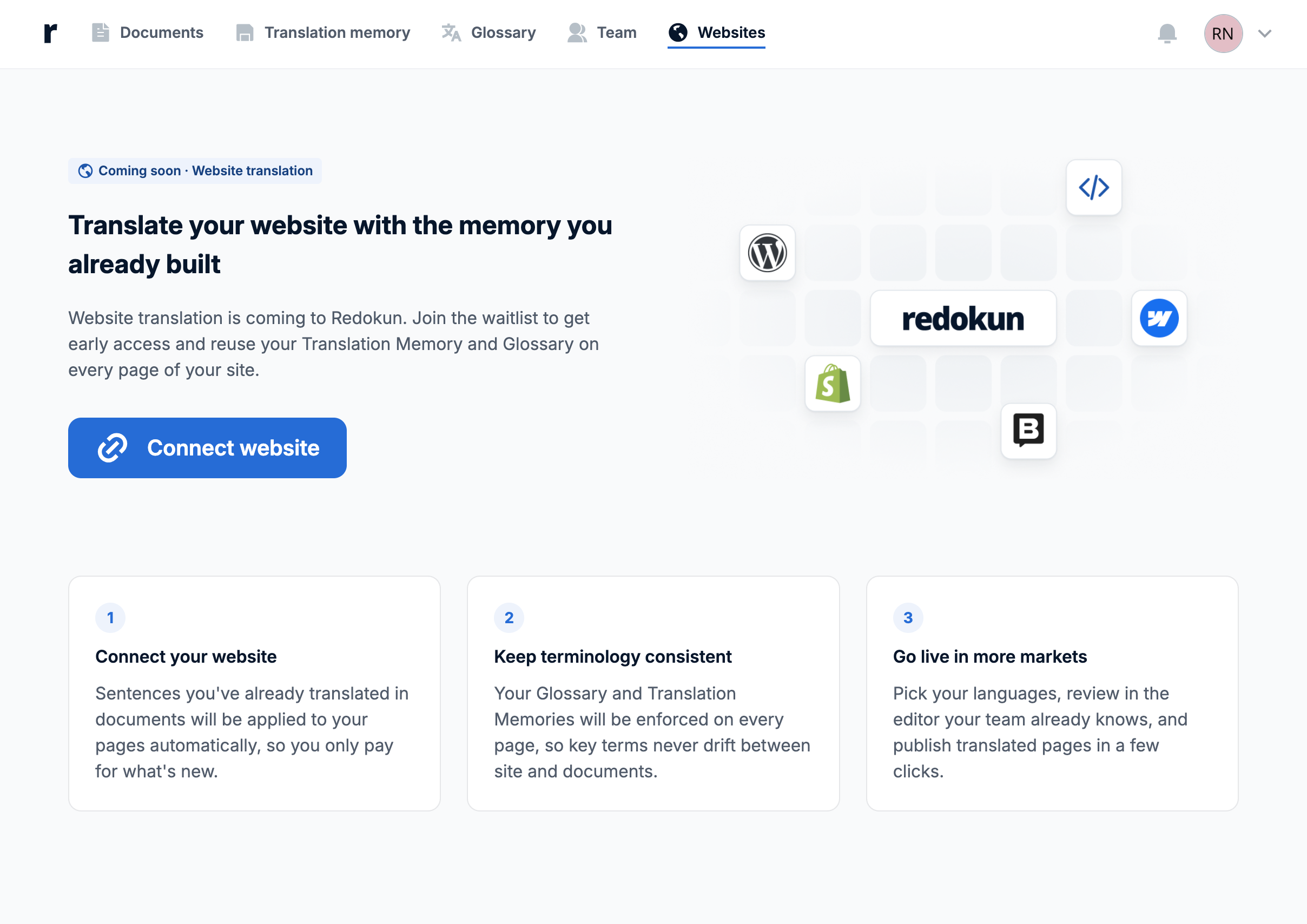
In Redokun, open Websites and click Connect website.
-
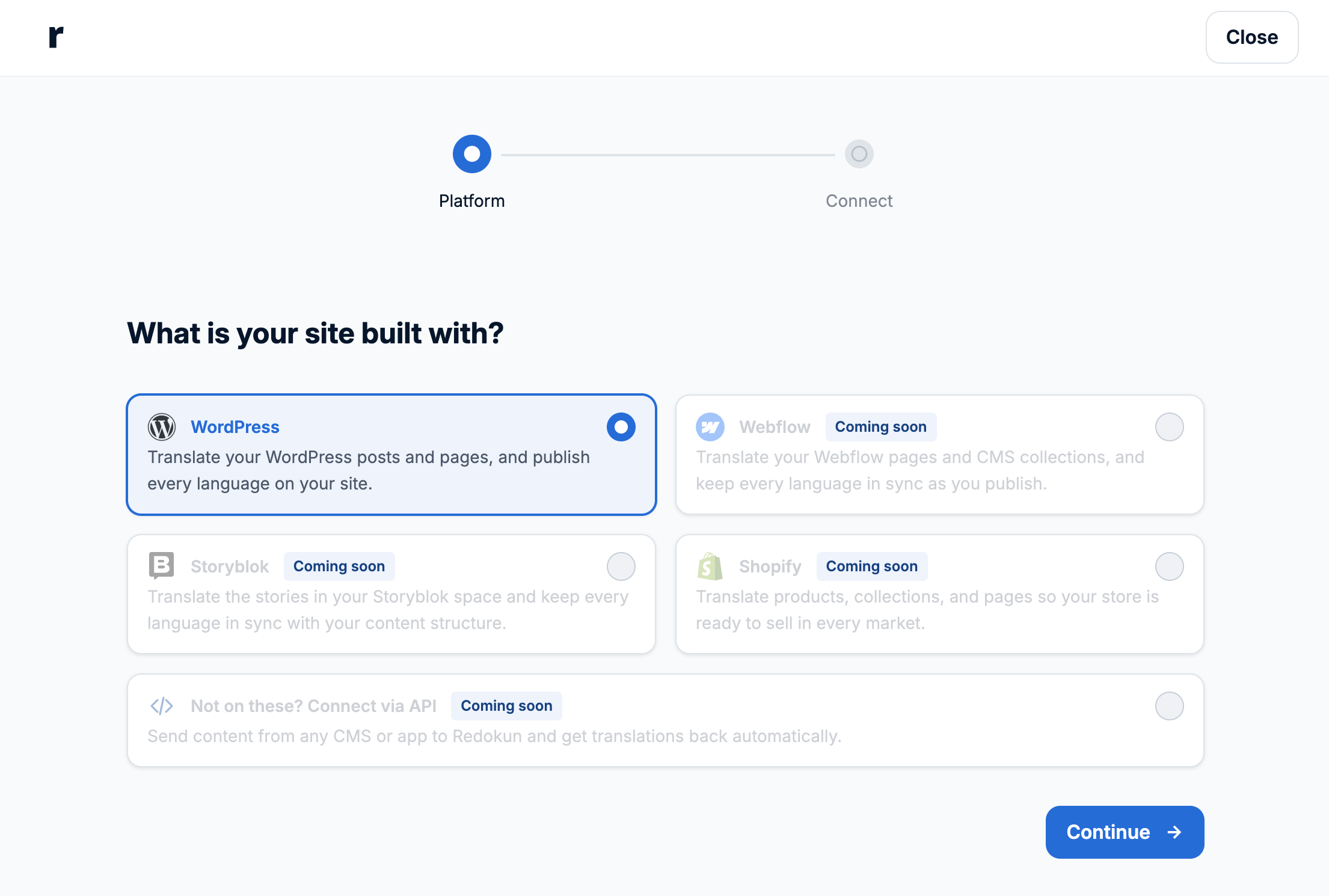
Under "What is your site built with?", select WordPress and click Continue.
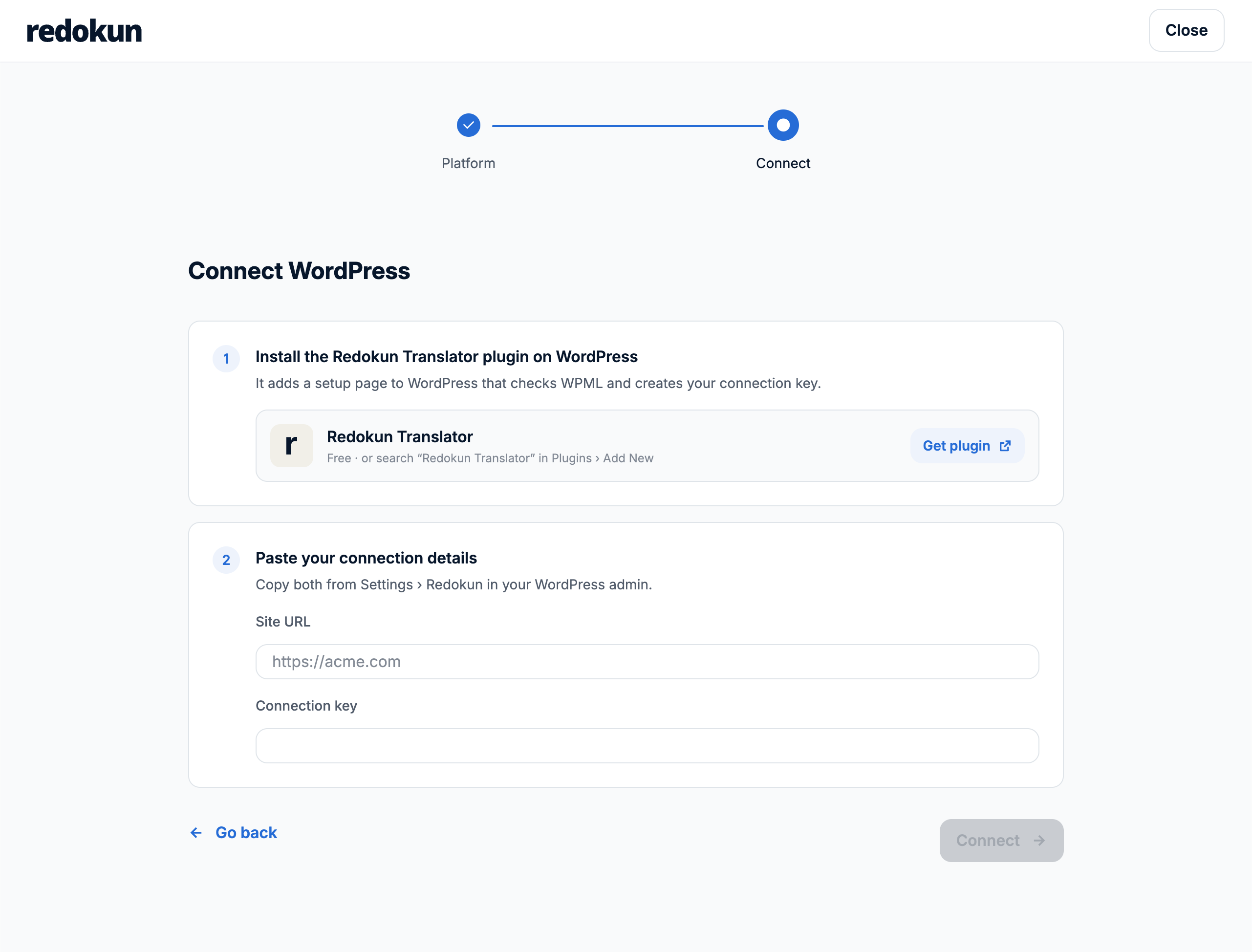
- Paste the Site URL and the Connection key you copied from WordPress.
-
Click Connect.
-
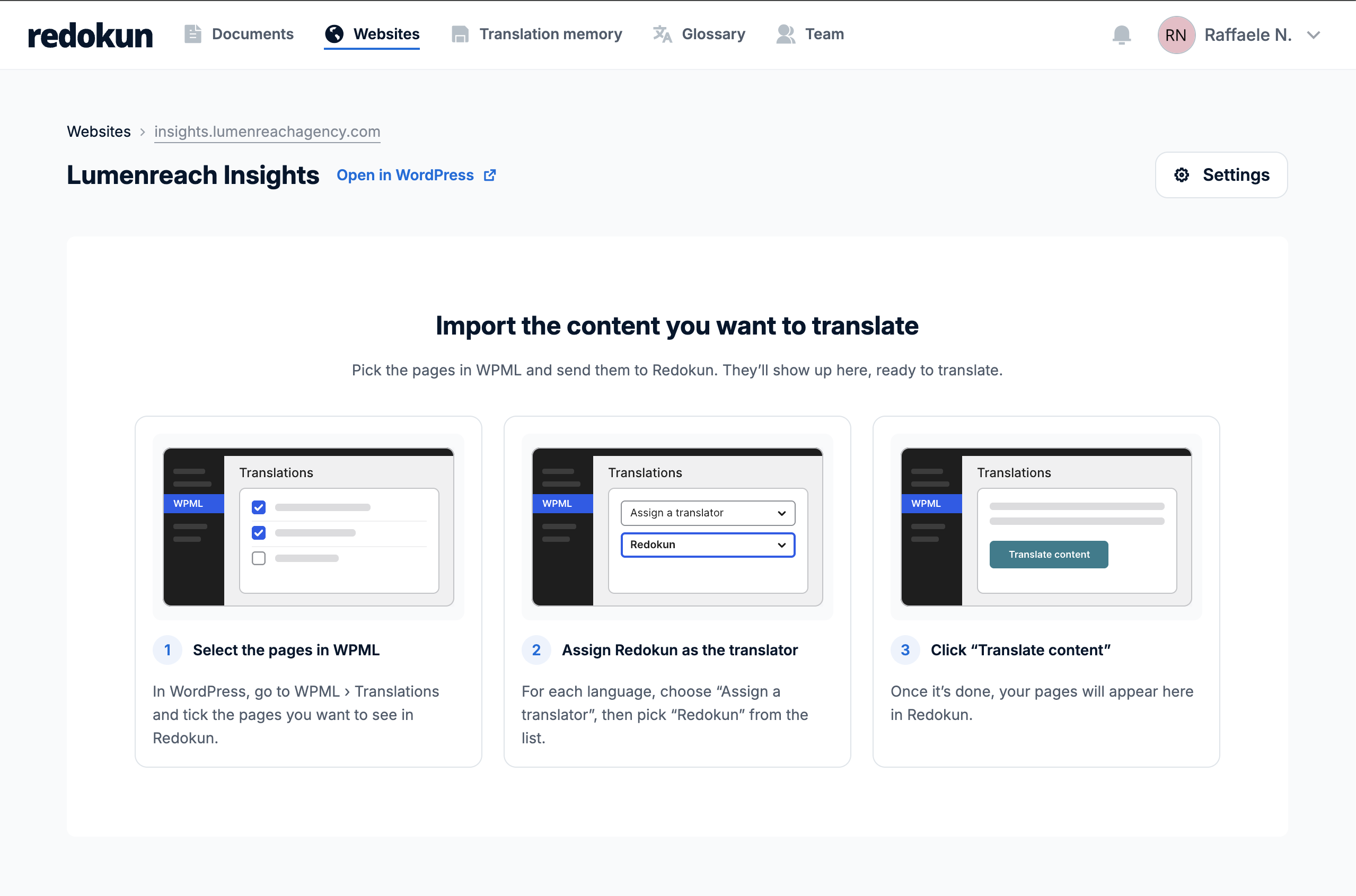
See your website in Redokun.
Troubleshooting
"Enter a site URL starting with https://"
Your site address must start with https://. Copy it exactly as it appears in Redokun → Redokun Settings.

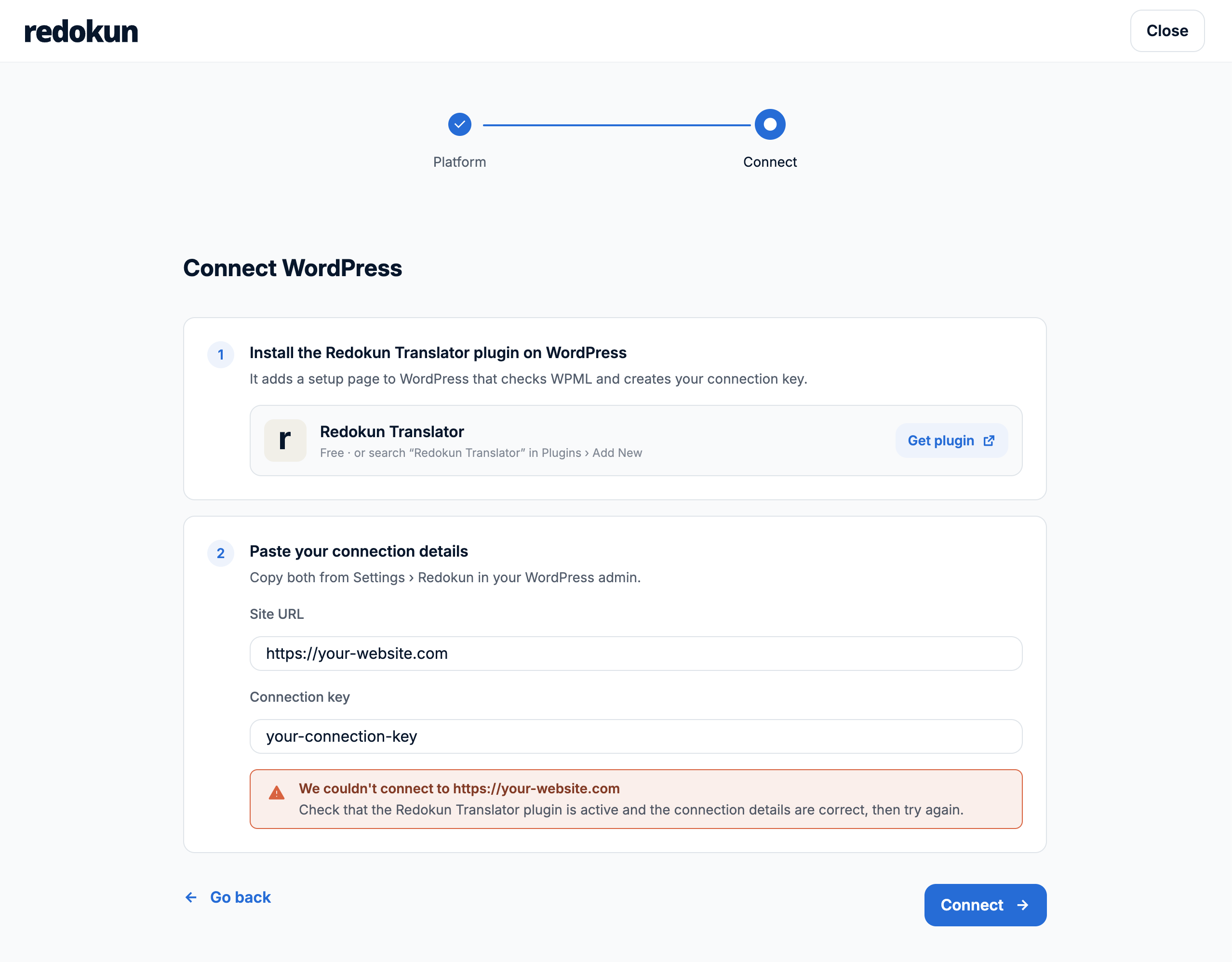
"We couldn't connect to..."
- Make sure you copied the whole connection key, with no extra spaces.
- Check that the Redokun plugin and WPML are both active.
-
If you created a new connection key in WordPress, use the new one. The old connection key stops working.
If it still doesn't work, contact us and include your site URL. Never send us the connection key.